
Plugins
Search The Workspace
Find connections, Library work, open tabs, closed tabs, scripts, queries, and test suites quickly.
Prerequisites
- Open the workspace where you want this plugin to be available and review its current maturity in Settings → Plugins.
- Confirm the platform boundary: Desktop app and browser preview for the currently loaded workspace.
- Use only connections, environments, resources, and credentials you are authorized to access.
Quickstart
- 1
Enable Workspace Search
Open Settings, choose Plugins, enable Workspace Search, then open the Search workspace from the workbench.
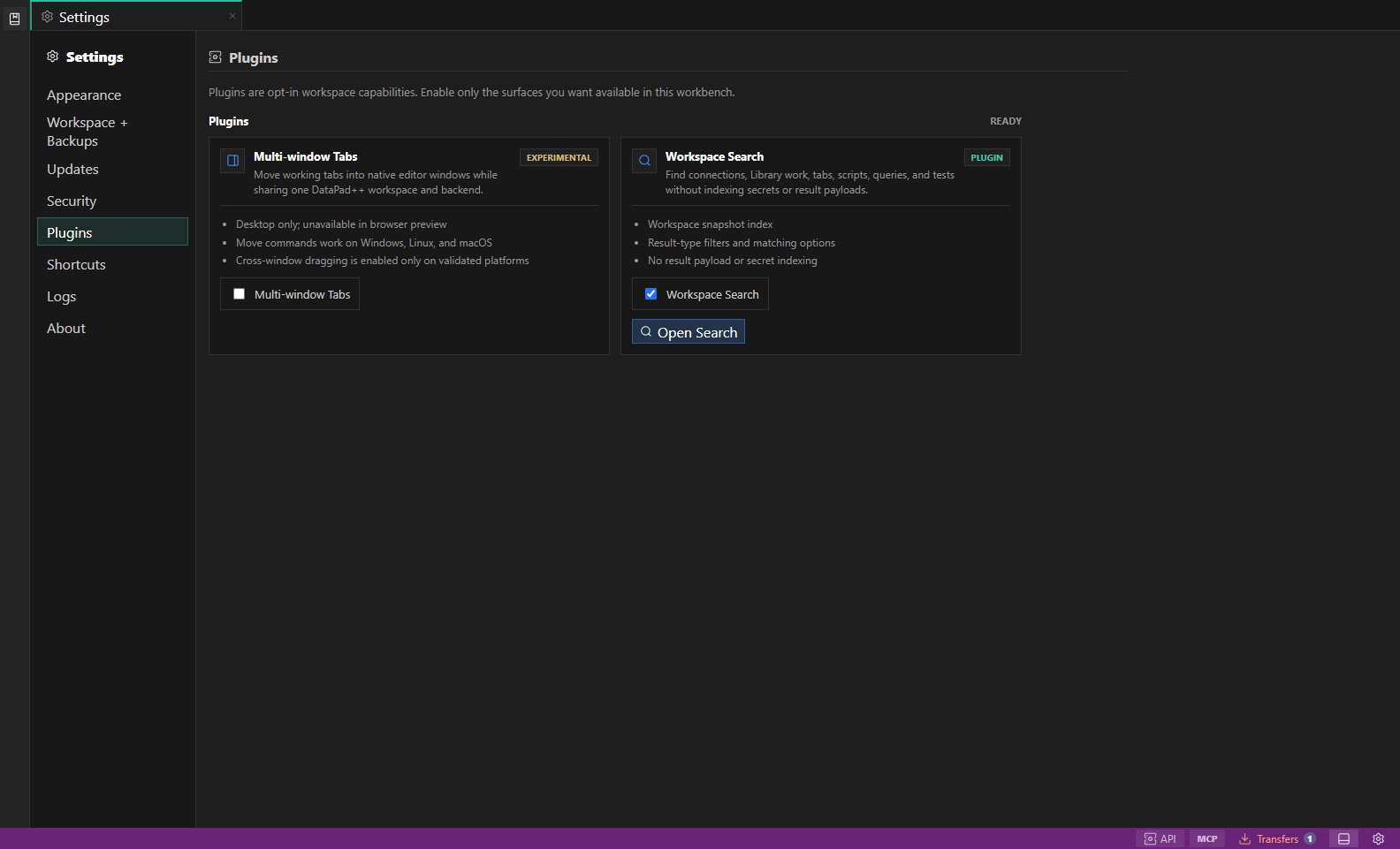
Plugin settings. The Plugins settings section shows each opt-in capability, its maturity, supported platforms, and enable control. Open full size - 2
Type the thing you remember
Search indexes the current workspace snapshot, including connection names, Library items, open tabs, recently closed tabs, scripts, queries, and tests.
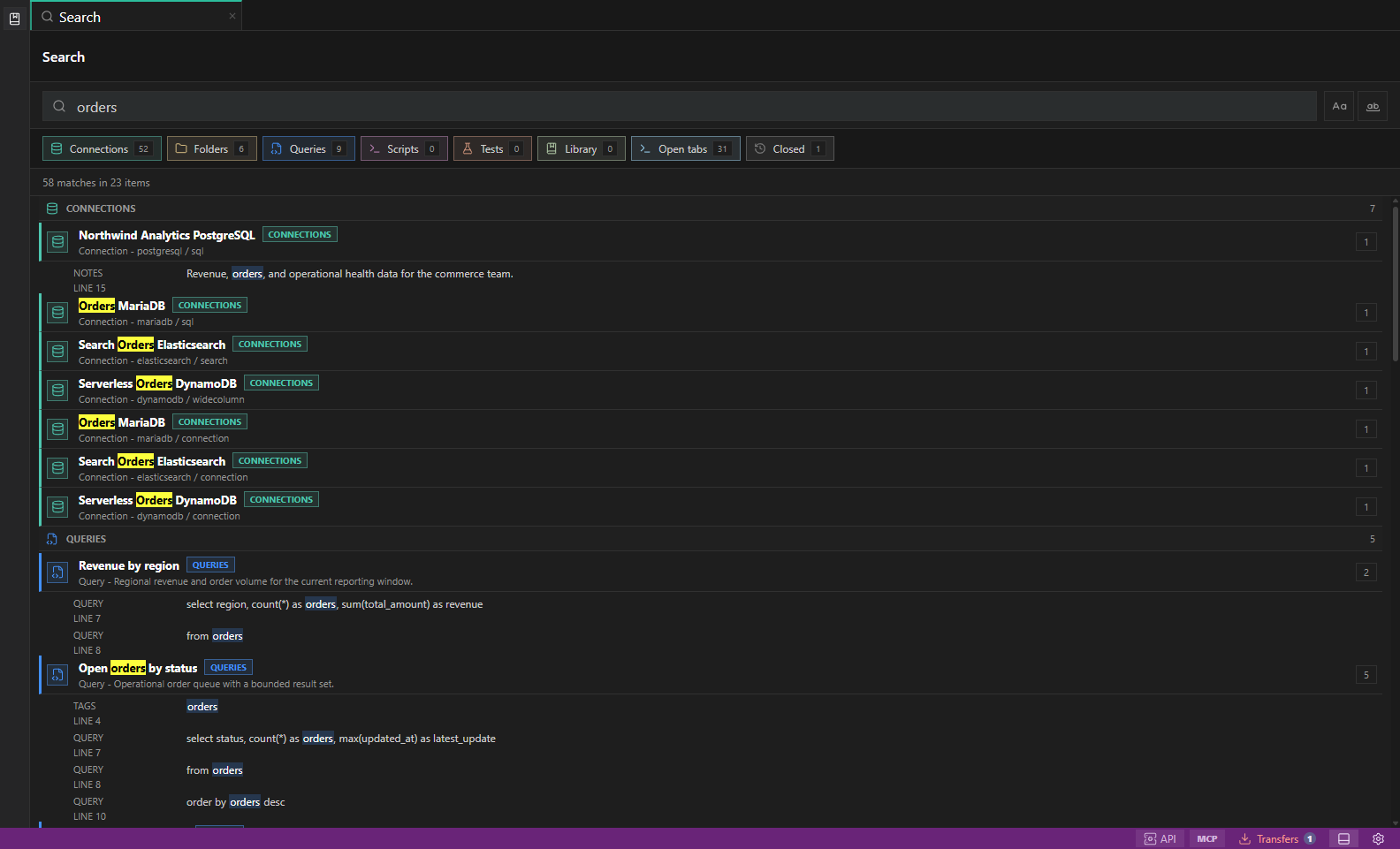
Workspace Search. Search connections, Library work, open tabs, recently closed tabs, scripts, and tests. Open full size - 3
Filter by result type
Toggle Connections, Folders, Queries, Scripts, Tests, Library, Open tabs, and Closed results to keep large workspaces easy to scan.
- 4
Use matching options
Match case and whole-word controls help narrow noisy searches without changing the saved workspace content.
- 5
Open results in place
Selecting a result opens the connection, Library item, tab, or recently closed tab so you can return to work without rebuilding context.
Features
| Feature | How to use it |
|---|---|
| Workspace-wide index | Find connections, folders, Library work, scripts, queries, tests, and open or recently closed tabs. |
| Result-type filters | Show only the categories relevant to the task. |
| Matching controls | Use case-sensitive and whole-word matching to narrow a noisy result set. |
| Open in context | Select a result to reopen its connection, saved work, or tab in the current workspace. |
| Private index boundary | Search omits secrets and datastore result payloads. |
Availability and data boundary
| Area | Behavior |
|---|---|
| Maturity | Live |
| Availability | Desktop app and browser preview for the currently loaded workspace. |
| Enablement | Current workspace preference. |
| Data boundary | Indexes names and searchable workspace metadata. Secret values and query result payloads are excluded. |
| When disabled | Search entry points are hidden; connections, tabs, scripts, queries, tests, and saved work are unchanged. |
Task and control reference
The workbench keeps the active connection, environment, target scope, query mode, and panel state visible. Review that context before you run, edit, export, or administer anything.
Safety boundaries
Troubleshooting
| Symptom | What to check |
|---|---|
| A control is disabled | Read its disabled reason, then verify target scope, connection health, read-only mode, environment policy, and feature maturity. |
| The screen does not match this guide | Confirm the app version and platform, refresh the active tab, and check whether the feature is marked Experimental, Plan only, or Unavailable. |
| The operation produces no rows | Open Messages and History, verify the selected datastore scope, replace the sample object names with names from your datastore, and retry with a bounded read. |