Workspaces, backups, and recovery
Use Tabs, Panels, And Drawers
Manage workspace tabs and place supporting information where it is easiest to compare.
Prerequisites
- Open DataPad++ and the workspace where you want to organize your own connections and saved work.
- Connect with an account you are authorized to use, and keep it read-only until your task requires a reviewed write.
Quickstart
- 1
Manage tabs
Save, rename, drag to reorder, or close a tab. Press Ctrl/Cmd+Shift+T to reopen the most recently closed tab.
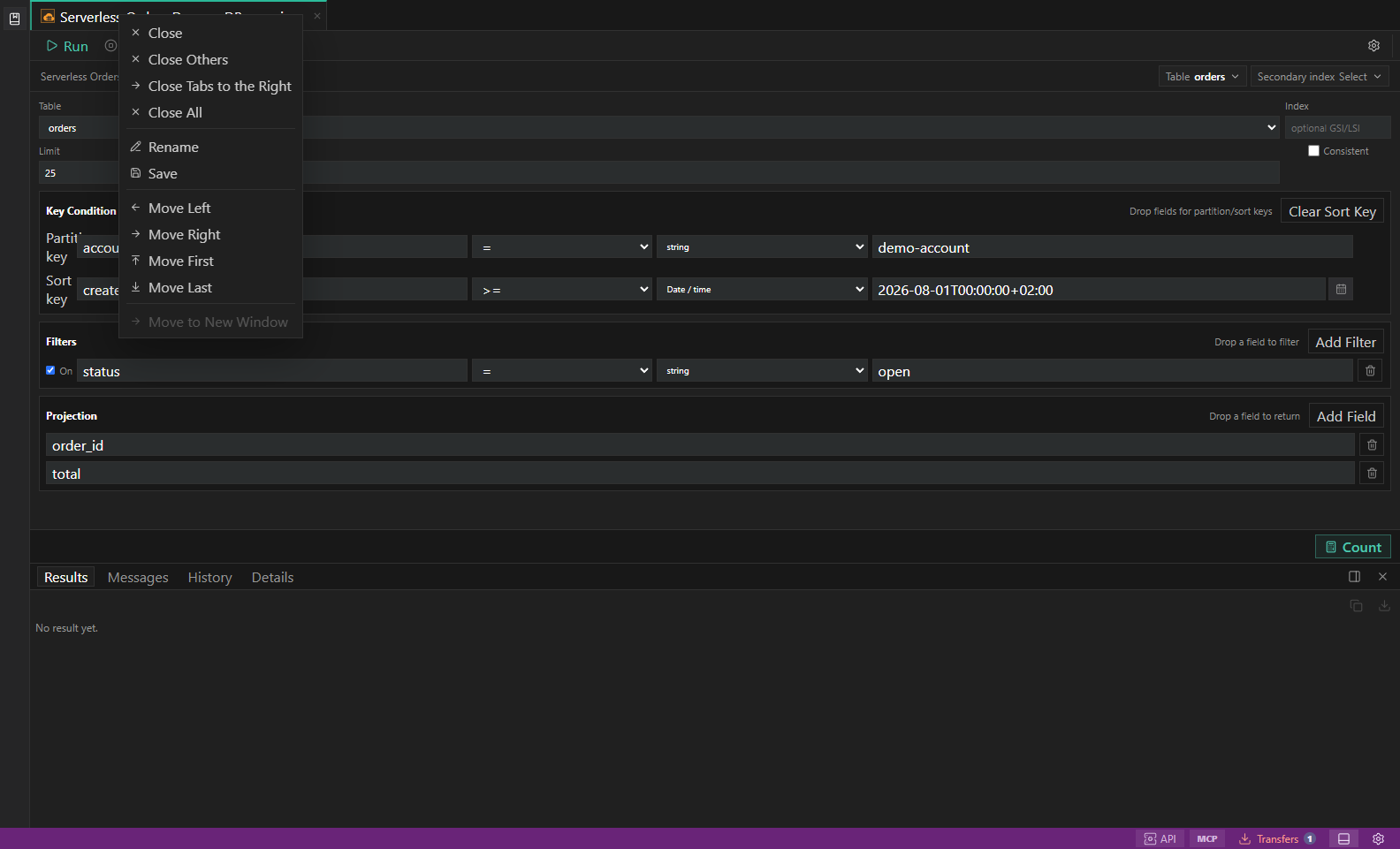
Experimental multi-window controls. The tab context menu exposes the preview-only move-to-window action and its current availability state. Open full size - 2
Choose a panel
Open Results, Messages, History, or Details. Press Ctrl/Cmd+J to show or hide the panel and choose bottom or right docking.
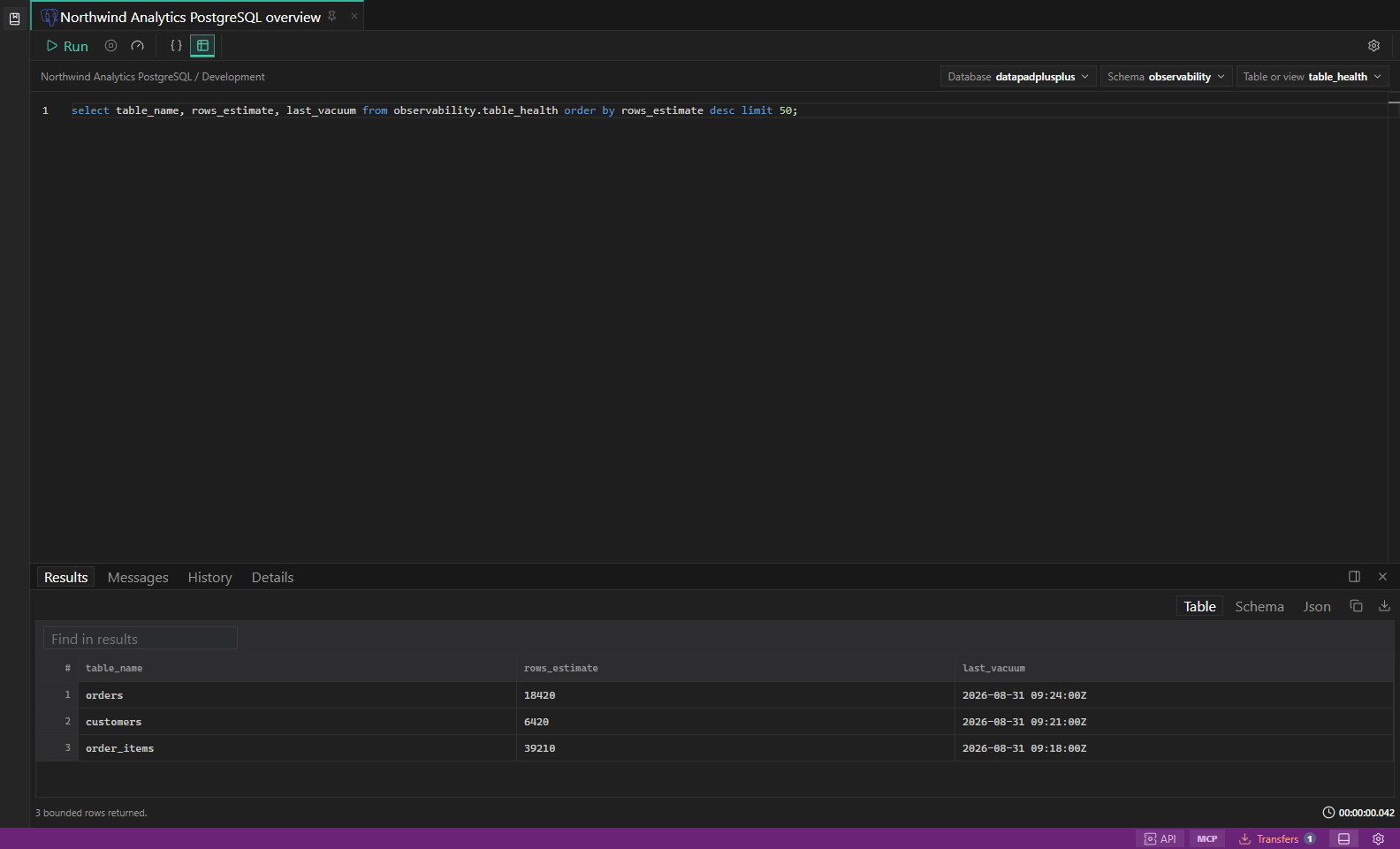
Workbench overview. Hero image showing the full DataPad++ desktop workspace. Open full size - 3
Open a dialog or drawer
Connection editing uses a centered dialog with method tabs. Inspection and Diagnostics remain drawers for selected objects, cells, and connection or execution evidence.
- 4
Use multiple windows
When experimental multi-window support is enabled, detach a tab to another window. The windows share the workspace and backend while each tab keeps its own context.
- 5
Recover layout
If a surface is lost, use Workspace Search, the status bar, or Settings to reopen it; reopen a closed tab before recreating work.
Task and control reference
| Surface or task | How to use it |
|---|---|
| Query tab | Editor, query mode, connection/scope, execution controls, and result panels. |
| Explorer / object-view / metrics | Native browsing, selected-object detail, or datastore metrics. |
| Environment / settings | Policy and application configuration workspaces. |
| API / MCP / Search / Security | Dedicated integration, discovery, and diagnostic workspaces. |
| Multi-window | Experimental; unavailable controls are labeled and no independent backend is created. |
Common failure states
| Problem | Resolution |
|---|---|
| The expected surface is hidden | Use the activity bar, View command, status-bar entry point, or Ctrl/Cmd+J for the panel and Ctrl/Cmd+B for the sidebar. |
| The tab has stale context | Refresh the tab, reselect its connection and scope, or open a new tab from the intended Explorer object. |
| A preview cannot execute | The feature may be preview-only for that datastore. Keep the generated plan or use the documented native-tool fallback. |