Workspaces, backups, and recovery
Import Or Export A Workspace
Move a versioned workspace safely, choose whether secrets travel, and activate the imported workspace immediately.
Prerequisites
- Install the current DataPad++ desktop pre-release and open the workspace where you want to organize your connections and saved work.
- Have access to a datastore or database file you are authorized to inspect. Start read-only with a least-privileged account.
Quickstart
- 1
Choose Export from Workspace and Backups
Exports exclude passwords and secrets by default. Enable secret inclusion only when the receiving machine should receive every resolvable vault-backed credential.
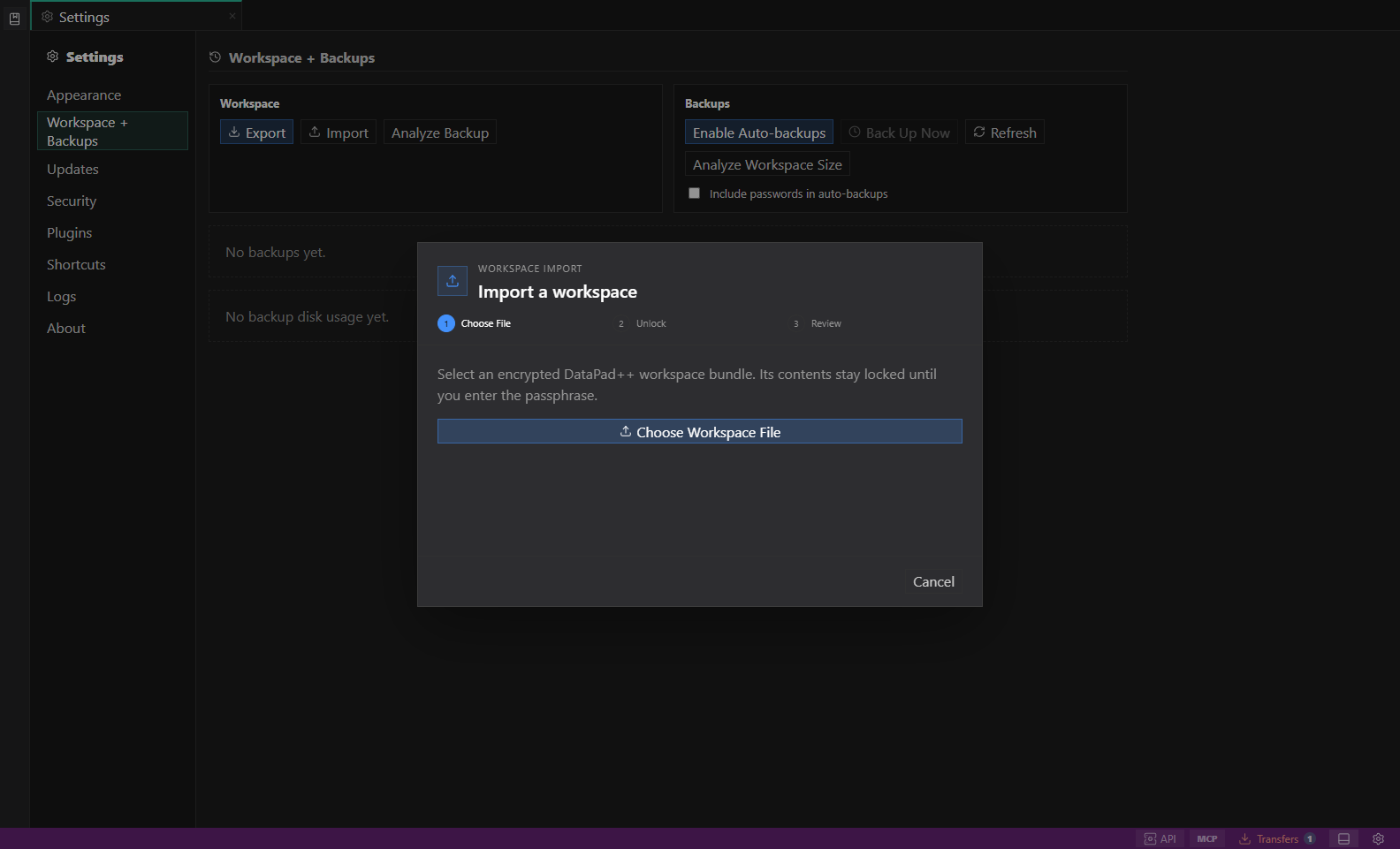
File-first workspace import. A staged choose-file, unlock, and review workflow that keeps encrypted contents closed until the passphrase is entered. Open full size - 2
Protect the bundle
Enter and confirm a strong passphrase, review the security summary, then choose the destination. Canceling the save picker leaves the dialog ready for another attempt.
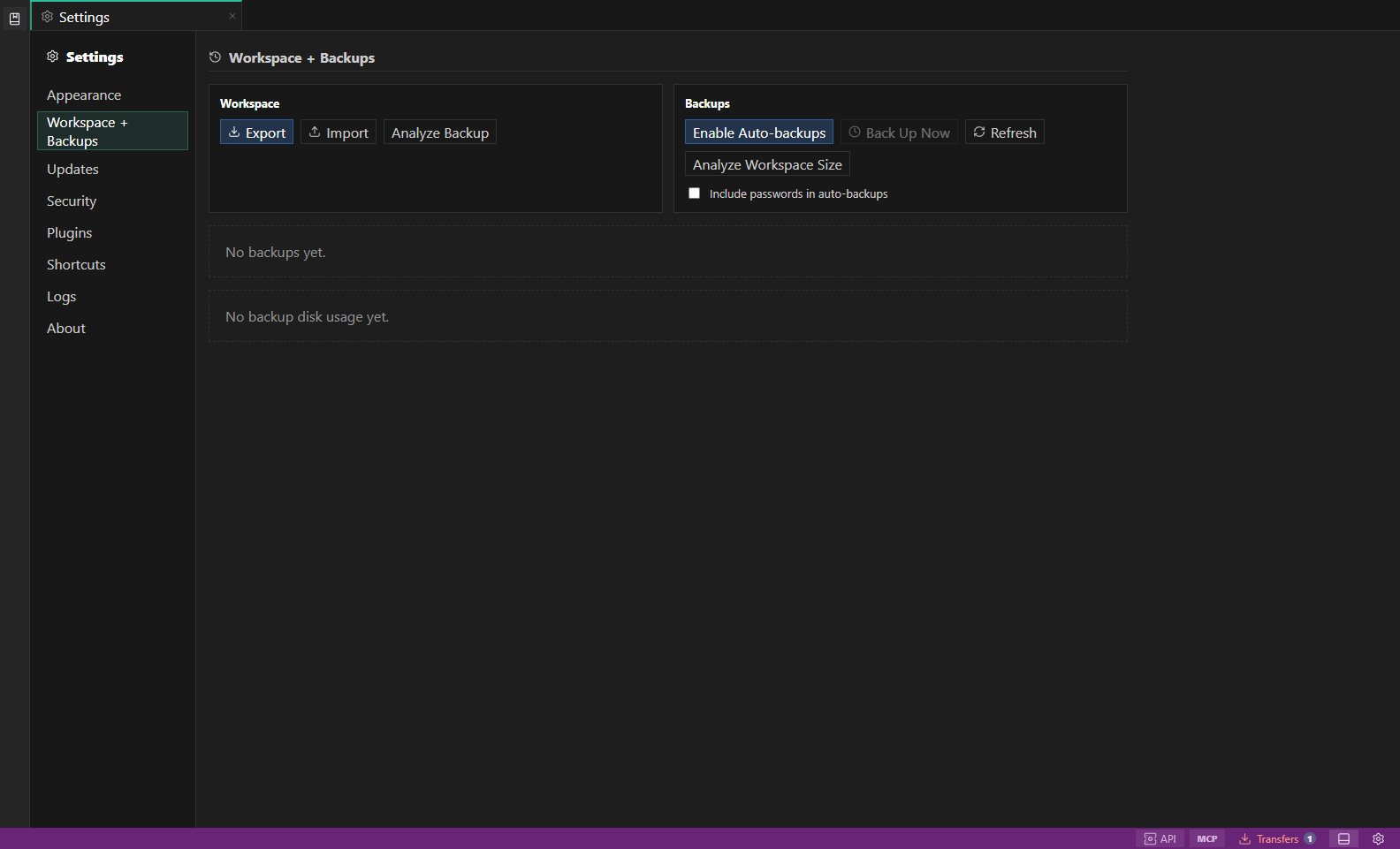
Settings and backups. Workspace bundles, encrypted backups, appearance, health, and shortcuts. Open full size - 3
Choose the import file first
Import validates the size and encrypted envelope before asking for a passphrase. A wrong passphrase can be retried without selecting the file again.
- 4
Review schema, counts, and secrets
The review shows format, workspace schema, encrypted/decrypted sizes, object counts, warnings, and whether secret material is available. Schema 14 is the current synchronized workspace contract; supported older schemas migrate, and newer unsupported schemas are rejected. Bundle format remains 2.
- 5
Name and commit the workspace
Create New Workspace is the default and accepts an editable name. Replace Current Workspace is explicitly destructive, keeps the current identity, and creates recovery state. Secret import always requires a separate opt-in.
Task and control reference
The workbench keeps the active connection, environment, target scope, query mode, and panel state visible. Review that context before you run, edit, export, or administer anything.
Safety boundaries
Troubleshooting
| Symptom | What to check |
|---|---|
| A control is disabled | Read its disabled reason, then verify target scope, connection health, read-only mode, environment policy, and feature maturity. |
| The screen does not match this guide | Confirm the app version and platform, refresh the active tab, and check whether the feature is marked Experimental, Plan only, or Unavailable. |
| The operation produces no rows | Open Messages and History, verify the selected datastore scope, replace the sample object names with names from your datastore, and retry with a bounded read. |