
Exploring and IntelliSense
Explore Datastore Metadata
Browse each datastore through its native hierarchy and purpose-built detail views.
Prerequisites
- Install the current DataPad++ desktop pre-release and open the workspace where you want to organize your connections and saved work.
- Have access to a datastore or database file you are authorized to inspect. Start read-only with a least-privileged account.
Quickstart
- 1
Open Explorer from a connection
Open Explorer from the connection menu. The full Explorer and sidebar use the same provider, loaded scopes, continuation pages, errors, and retry state.
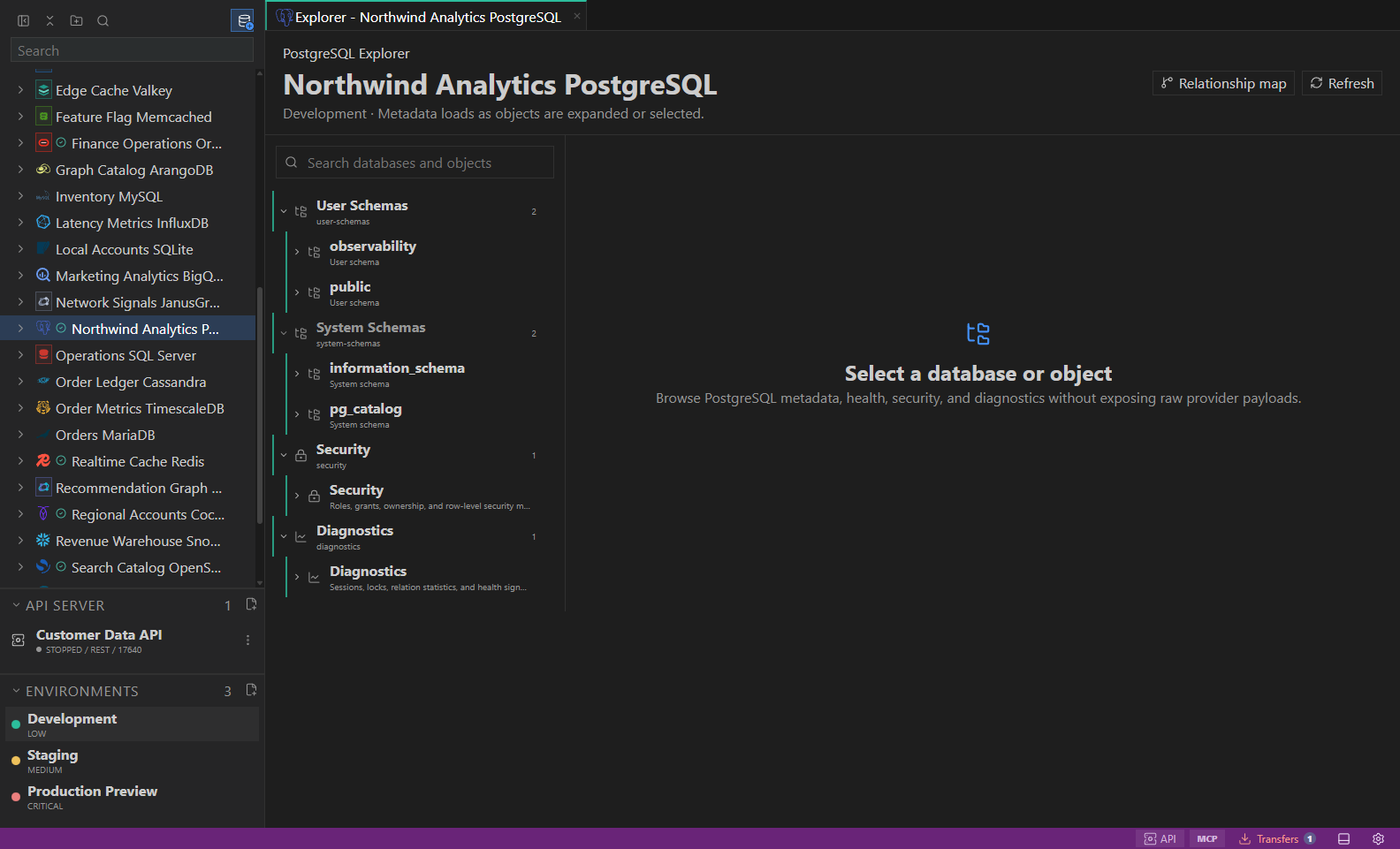
Object explorer. Datastore-owned tree with native objects and context actions. Open full size - 2
Browse the native hierarchy
Expand the datastore-specific databases, schemas, collections, key groups, indices, metrics, graphs, or warehouse objects. System and administrative namespaces remain separate and collapsed by default.
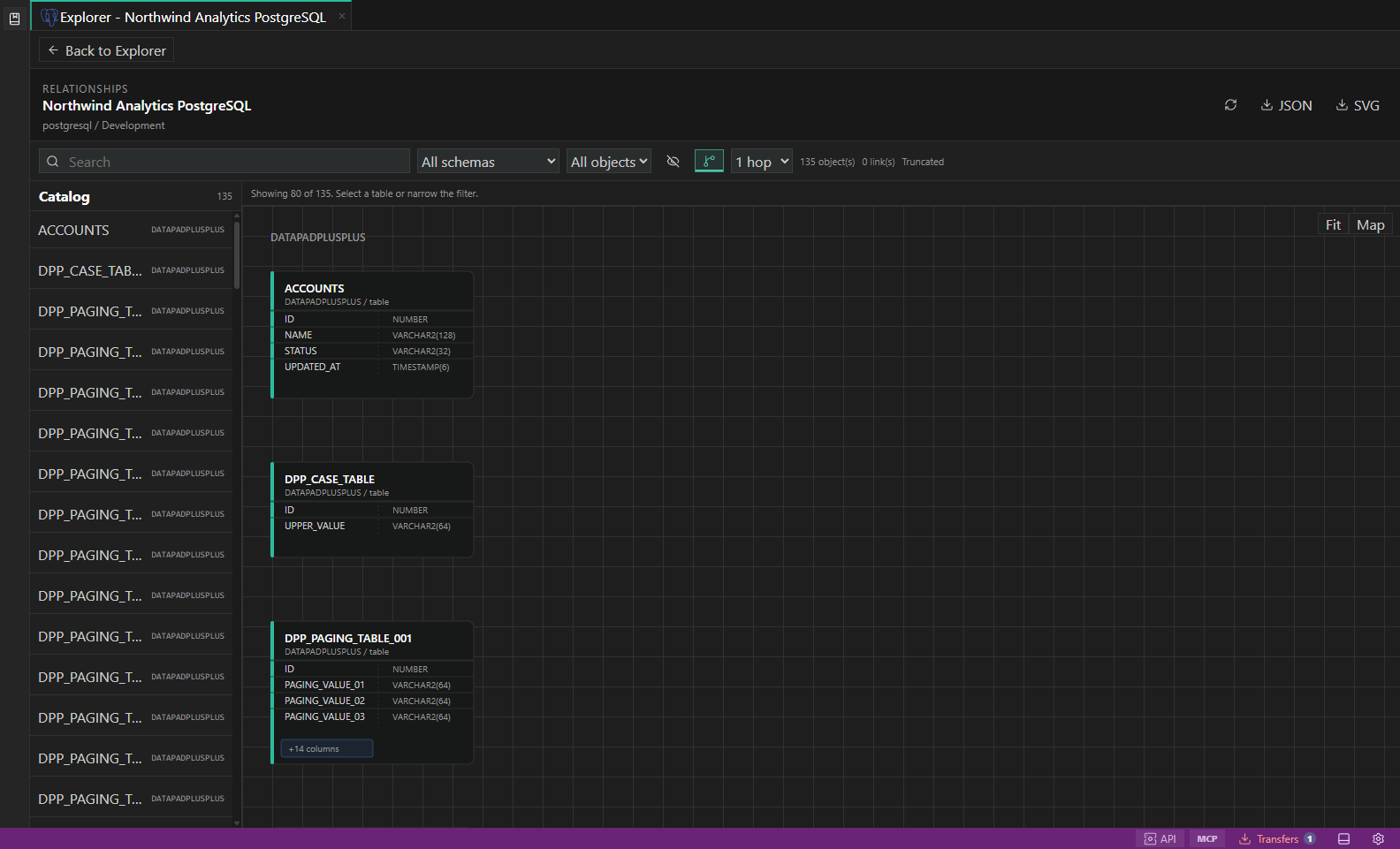
SQL relationship explorer. Focused schema diagrams with table cards, relationship ends, and object inspectors. Open full size - 3
Load large inventories safely
Explorer loads bounded pages, shows loaded and available counts where the datastore reports them, and marks partial results instead of implying that a truncated inventory is complete.
- 4
Use purpose-built details
Select an object to see structured metrics, inventories, schema, health, security, diagnostics, or bounded type-aware values. Raw provider metadata is never used as a visual fallback.
- 5
Respond to exact states
Empty, permission, authentication, connectivity, timeout, partial, and retryable failure states remain distinct so you know whether to load more, retry, or request access.
- 6
Hand work to guarded tools
Explorer is read-only. Open queries and operational views from contextual actions; edits and administrative changes continue through the existing guarded planning and confirmation workflows.
Task and control reference
The workbench keeps the active connection, environment, target scope, query mode, and panel state visible. Review that context before you run, edit, export, or administer anything.
Safety boundaries
Troubleshooting
| Symptom | What to check |
|---|---|
| A control is disabled | Read its disabled reason, then verify target scope, connection health, read-only mode, environment policy, and feature maturity. |
| The screen does not match this guide | Confirm the app version and platform, refresh the active tab, and check whether the feature is marked Experimental, Plan only, or Unavailable. |
| The operation produces no rows | Open Messages and History, verify the selected datastore scope, replace the sample object names with names from your datastore, and retry with a bounded read. |