Querying and query builders
Query In The Right Mode
Choose raw editors, visual builders, consoles, and scoped query surfaces.
Prerequisites
- Install the current DataPad++ desktop pre-release and open the workspace where you want to organize your connections and saved work.
- Have access to a datastore or database file you are authorized to inspect. Start read-only with a least-privileged account.
Quickstart
- 1
Open a query from a connection or object
Use a connection-level action for a blank editor or an object action for a query already aimed at a table, collection, keyspace, index, or view.
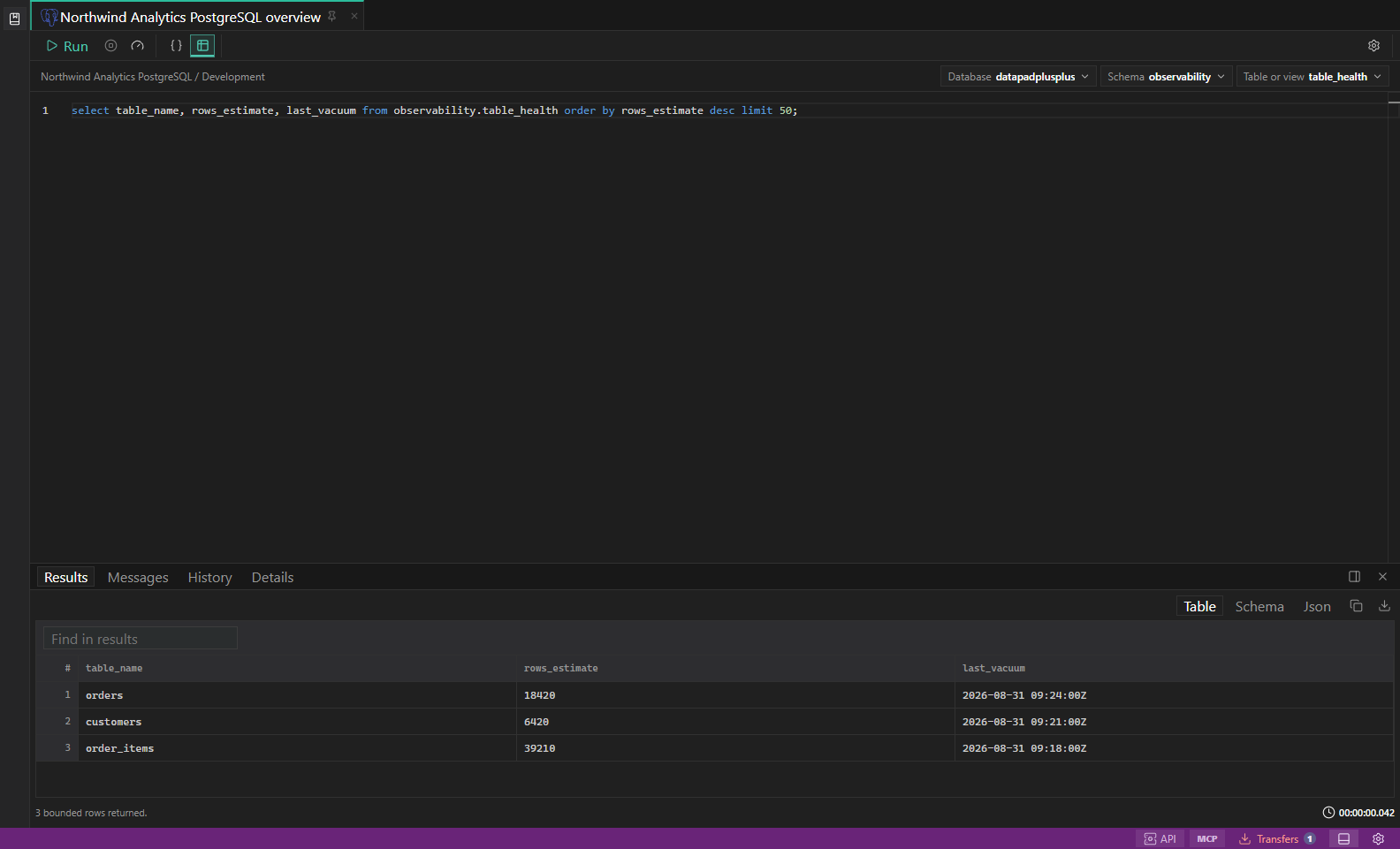
SQL query results. Editor, result grid, messages, and row selection in one workspace. Open full size - 2
Choose the mode that fits the datastore
SQL opens in raw SQL by default. MongoDB can use builder, raw JSON command, aggregation, or scripting-style reads. Redis and Valkey start in key-browser mode with a console available.
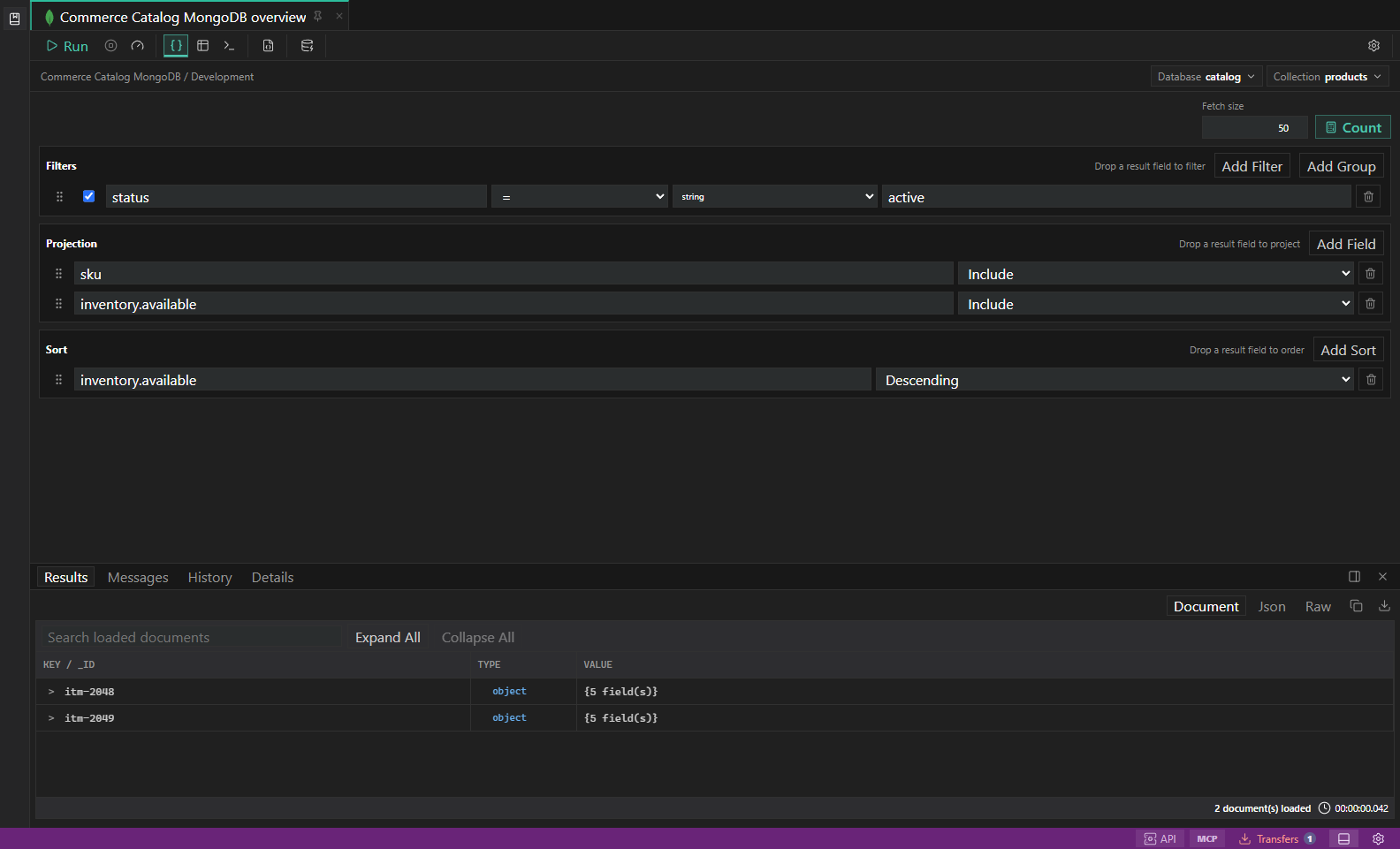
MongoDB query builder. Filters, projections, sort, explain plans, and document results. Open full size - 3
Use IntelliSense and snippets
Let cached metadata, dialect helpers, command hints, and known field paths guide query construction.
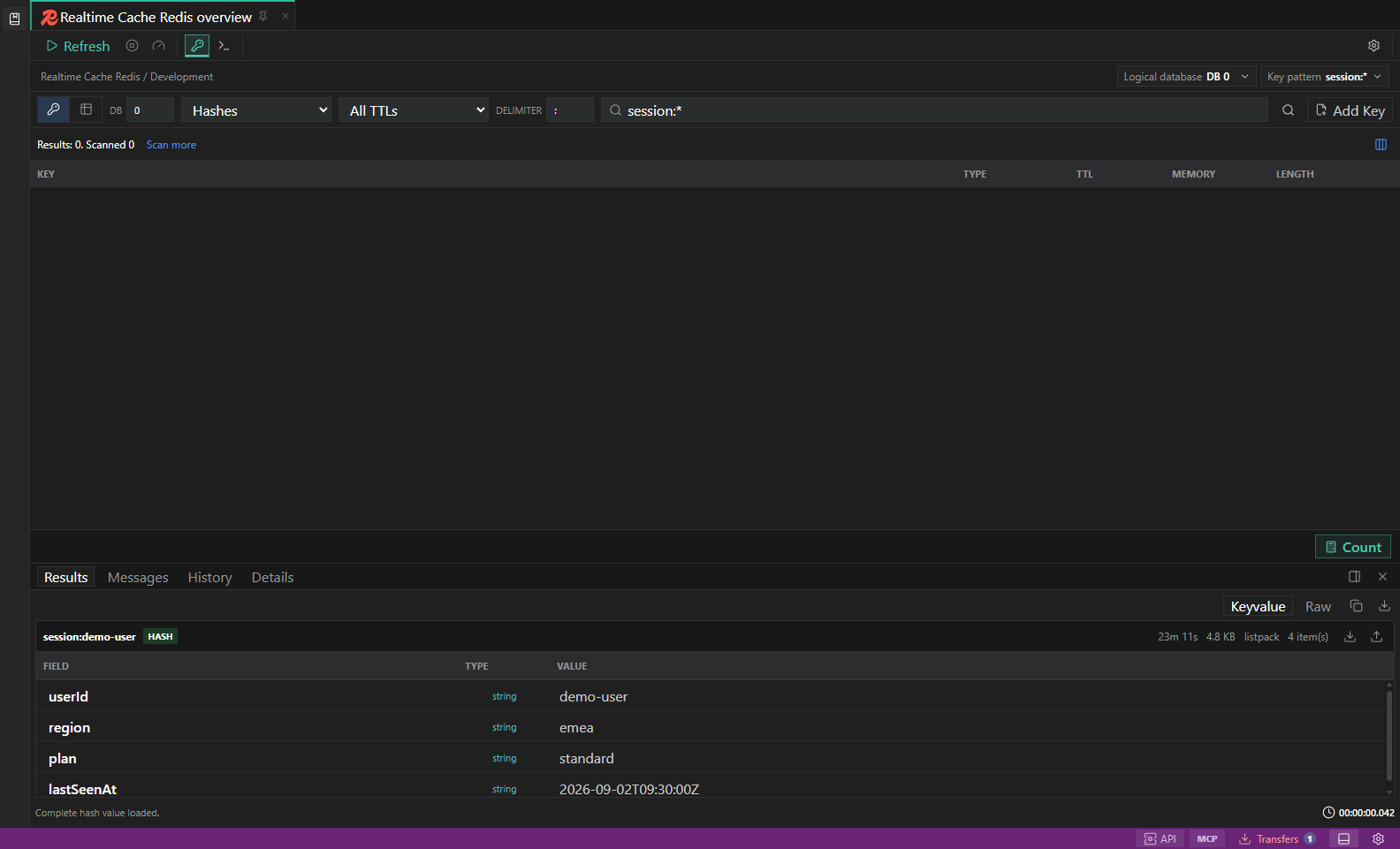
Redis key browser. Key filters, type-aware value surfaces, TTL, and guarded key actions. Open full size - 4
Run bounded reads first
Start with a limit, filter, projection, key pattern, or partition condition to keep initial results small and predictable.
- 5
Review generated queries
When visual builders generate a query, read it before saving or running. Invalid typed values or nested groups block compilation, execution, count, and editor handoff instead of falling back to stale text.
- 6
Save useful work
Save repeated queries to the Library with names that identify the target, purpose, and intended environment.
Task and control reference
The workbench keeps the active connection, environment, target scope, query mode, and panel state visible. Review that context before you run, edit, export, or administer anything.
Safety boundaries
Troubleshooting
| Symptom | What to check |
|---|---|
| A control is disabled | Read its disabled reason, then verify target scope, connection health, read-only mode, environment policy, and feature maturity. |
| The screen does not match this guide | Confirm the app version and platform, refresh the active tab, and check whether the feature is marked Experimental, Plan only, or Unavailable. |
| The operation produces no rows | Open Messages and History, verify the selected datastore scope, replace the sample object names with names from your datastore, and retry with a bounded read. |