Getting started
Tour The DataPad++ Interface
Learn every navigation surface before you connect or run a query.
Prerequisites
- Open DataPad++ and the workspace where you want to organize your own connections and saved work.
- Connect with an account you are authorized to use, and keep it read-only until your task requires a reviewed write.
Quickstart
- 1
Choose a sidebar
Use the activity rail to open Library, Explorer, or Tests. Library owns saved connections, environments, folders, scripts, and reusable work; Explorer follows the active datastore; Tests opens visual datastore suites.
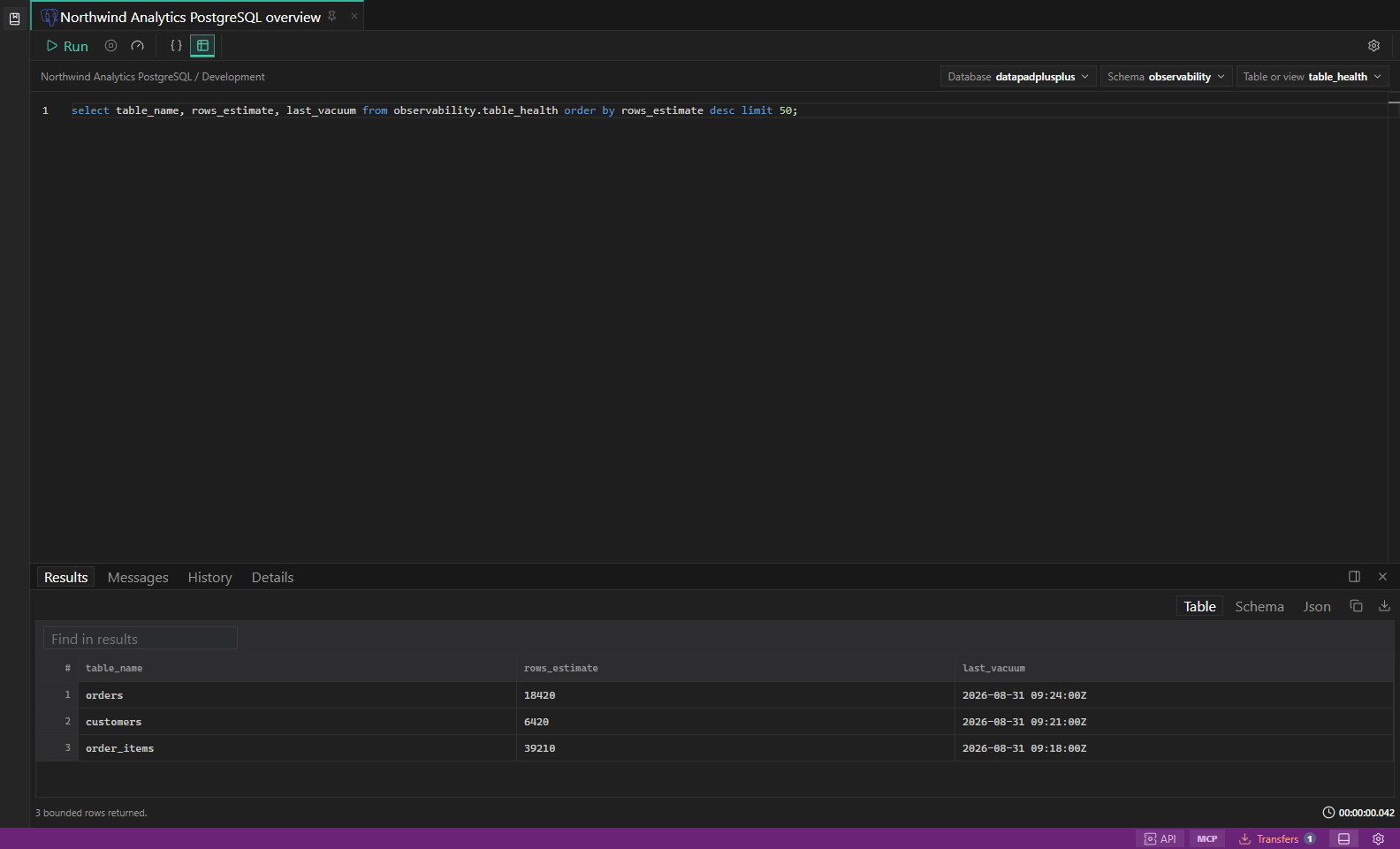
Workbench overview. Hero image showing the full DataPad++ desktop workspace. Open full size - 2
Open a workspace tab
Open query, explorer, metrics, object-view, test-suite, environment, settings, API Server, MCP Server, Workspace Search, or Security Checks tabs. Each tab retains its own target and state.
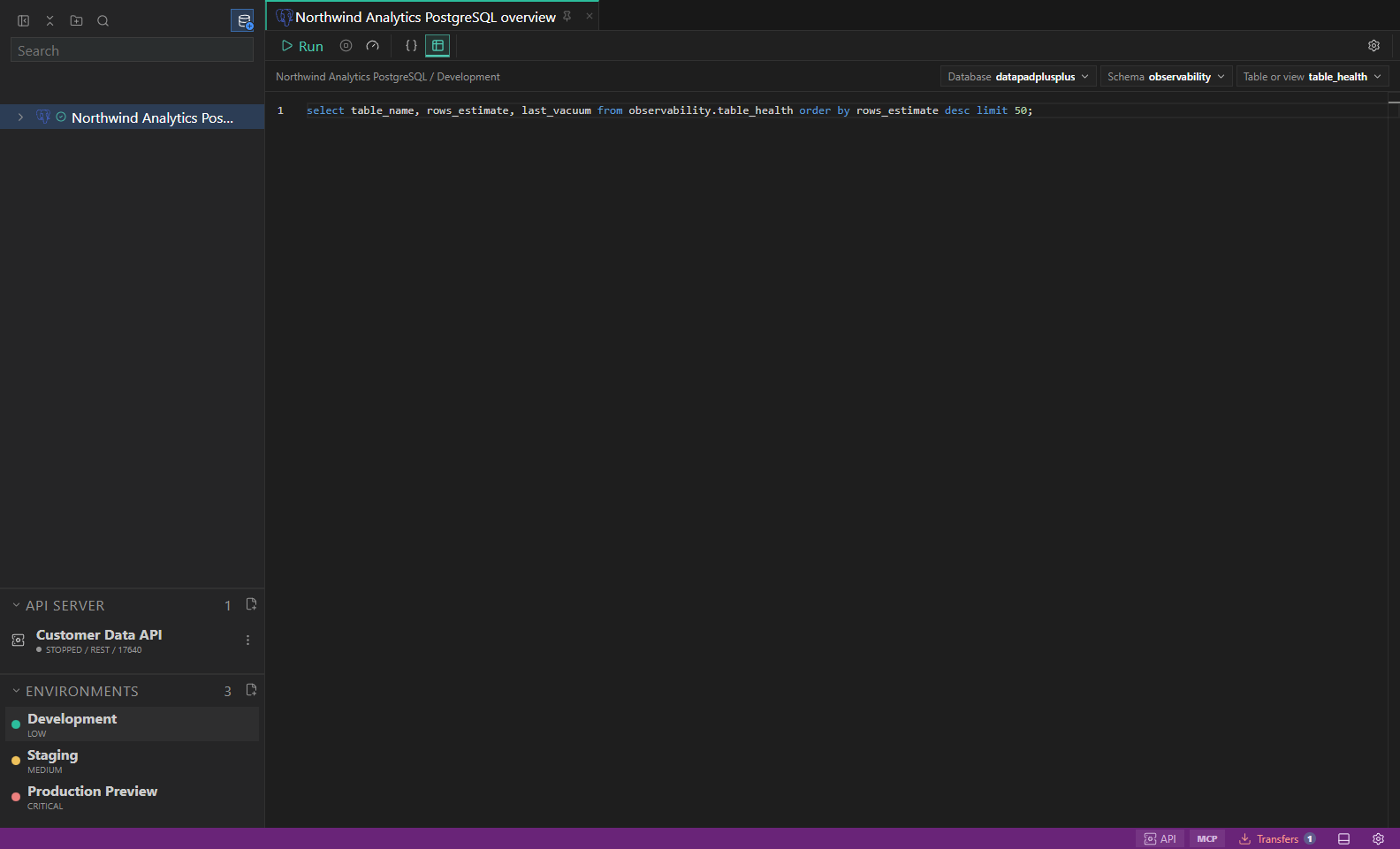
Library and environments. Saved connections, folders, scripts, and inherited environment labels. Open full size - 3
Use the query toolbar
Review Run, Cancel, Explain, query mode, connection context, and document-action controls. Controls appear only when the active tab and datastore can support them.
- 4
Arrange supporting surfaces
Open Results, Messages, History, or Details and dock the panel at the bottom or right. Connection settings open in a dialog; inspection and diagnostics use drawers.
- 5
Read the status bar
Open updates, API/MCP servers, security checks, transfers, messages, panel visibility, or Settings from their status-bar entry points.
Task and control reference
| Surface or task | How to use it |
|---|---|
| Library sidebar | Connections, environments, folders, scripts, saved queries, and recently used work. |
| Explorer sidebar | Native database, schema, table, collection, index, bucket, metric, or graph objects for the active connection. |
| Tests sidebar | Owned suites, cases, steps, variables, assertions, and adapter-backed preflight runs. |
| Connection dialog | Create or edit a profile with method tabs, grouped options, and an explicit discard confirmation. |
| Right drawers | Object inspection and connection/query diagnostics without leaving the active tab. |
| Status bar | Updates, servers, security, transfers, messages, panels, and Settings entry points. |
Common failure states
| Problem | Resolution |
|---|---|
| The expected surface is hidden | Use the activity bar, View command, status-bar entry point, or Ctrl/Cmd+J for the panel and Ctrl/Cmd+B for the sidebar. |
| The tab has stale context | Refresh the tab, reselect its connection and scope, or open a new tab from the intended Explorer object. |
| A preview cannot execute | The feature may be preview-only for that datastore. Keep the generated plan or use the documented native-tool fallback. |