Plugins
Move Tabs Between Windows
Enable the experimental desktop workspace and move eligible working tabs without creating another application session.
Prerequisites
- Open the workspace where you want this plugin to be available and review its current maturity in Settings → Plugins.
- Confirm the platform boundary: Desktop app on Windows, macOS, and Linux; cross-window drag depends on the validated WebView platform.
- Use only connections, environments, resources, and credentials you are authorized to access.
Quickstart
- 1
Enable Multi-window Tabs
Open Settings → Plugins and enable the desktop-only experimental plugin. Browser preview stays single-window.
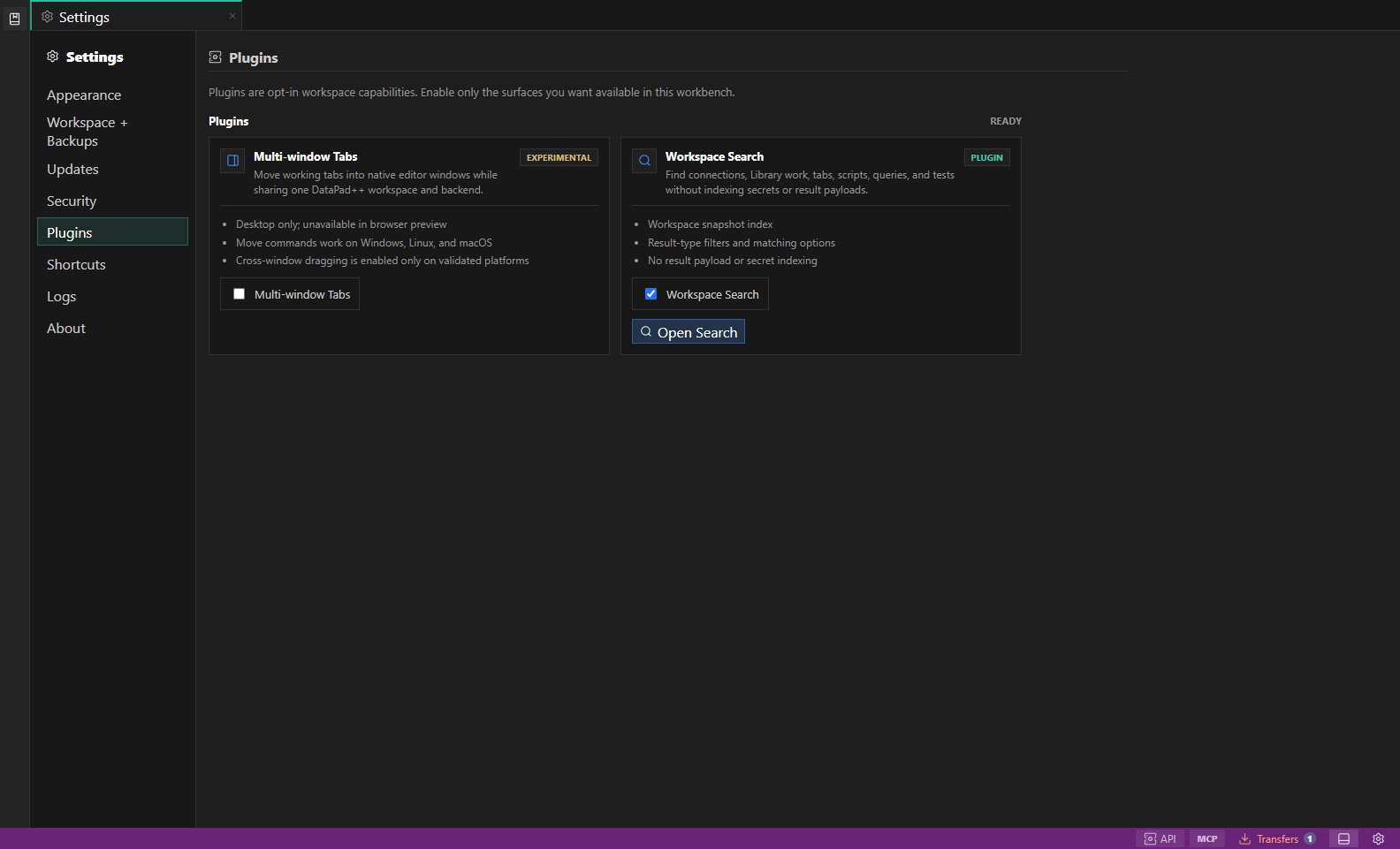
Plugin settings. The Plugins settings section shows each opt-in capability, its maturity, supported platforms, and enable control. Open full size - 2
Move an eligible tab
Use Move to New Window, Move to Window…, or Move to Main Window from the tab menu. Query, object, metrics, test, and search work can move; administrative surfaces remain in main.
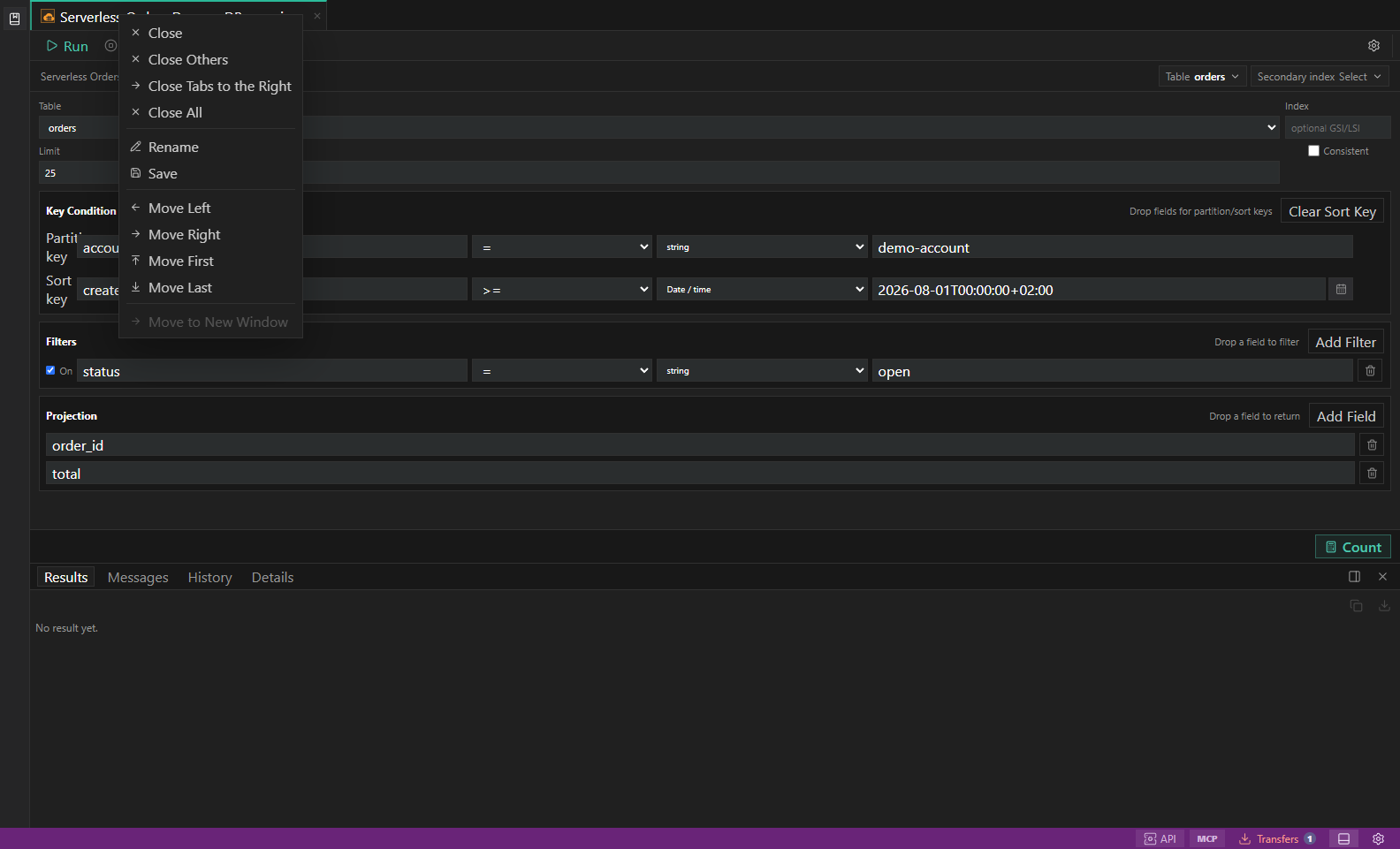
Experimental multi-window controls. The tab context menu exposes the preview-only move-to-window action and its current availability state. Open full size - 3
Use drag where supported
A supported platform can insert over another strip or create an editor window outside the app. Escape and invalid destinations cancel without moving ownership.
- 4
Respect execution locks
Queued or running work blocks movement. Drafts flush before transfer, and failed window creation leaves the tab in its source window.
- 5
Understand close and restore
Closing an editor window reattaches its tabs to main. Closing main coordinates application shutdown. Window placement and ownership restore with the workspace.
Features
| Feature | How to use it |
|---|---|
| Move commands | Move an eligible tab to a new window, another window, or the main window from its tab menu. |
| Validated dragging | Drag between strips only when the current platform exposes reliable WebView drag behavior. |
| Shared backend | All windows use the same lock state, connections, environments, execution state, and workspace revision. |
| Execution locks | Queued or running tabs cannot move, preventing duplicated or misdirected work. |
| Layout recovery | Closing an editor window reattaches its tabs, and supported layout returns with the workspace. |
Availability and data boundary
| Area | Behavior |
|---|---|
| Maturity | Experimental |
| Availability | Desktop app on Windows, macOS, and Linux; cross-window drag depends on the validated WebView platform. |
| Enablement | Current workspace preference. |
| Data boundary | Persists tab ownership and window geometry, not a second datastore session or copied credentials. |
| When disabled | Eligible tabs return to the main window. Running or queued work must finish or be cancelled first. |
Task and control reference
The workbench keeps the active connection, environment, target scope, query mode, and panel state visible. Review that context before you run, edit, export, or administer anything.
Safety boundaries
Troubleshooting
| Symptom | What to check |
|---|---|
| A control is disabled | Read its disabled reason, then verify target scope, connection health, read-only mode, environment policy, and feature maturity. |
| The screen does not match this guide | Confirm the app version and platform, refresh the active tab, and check whether the feature is marked Experimental, Plan only, or Unavailable. |
| The operation produces no rows | Open Messages and History, verify the selected datastore scope, replace the sample object names with names from your datastore, and retry with a bounded read. |