Import, export, and native backup
Import, Export, And Backup Data
Use guarded desktop file workflows for portable data movement.
Prerequisites
- Install the current DataPad++ desktop pre-release and open the workspace where you want to organize your connections and saved work.
- Have access to a datastore or database file you are authorized to inspect. Start read-only with a least-privileged account.
Quickstart
- 1
Open the action from the object context
Start import or export from the table, collection, key, local file, or database object that owns the data.
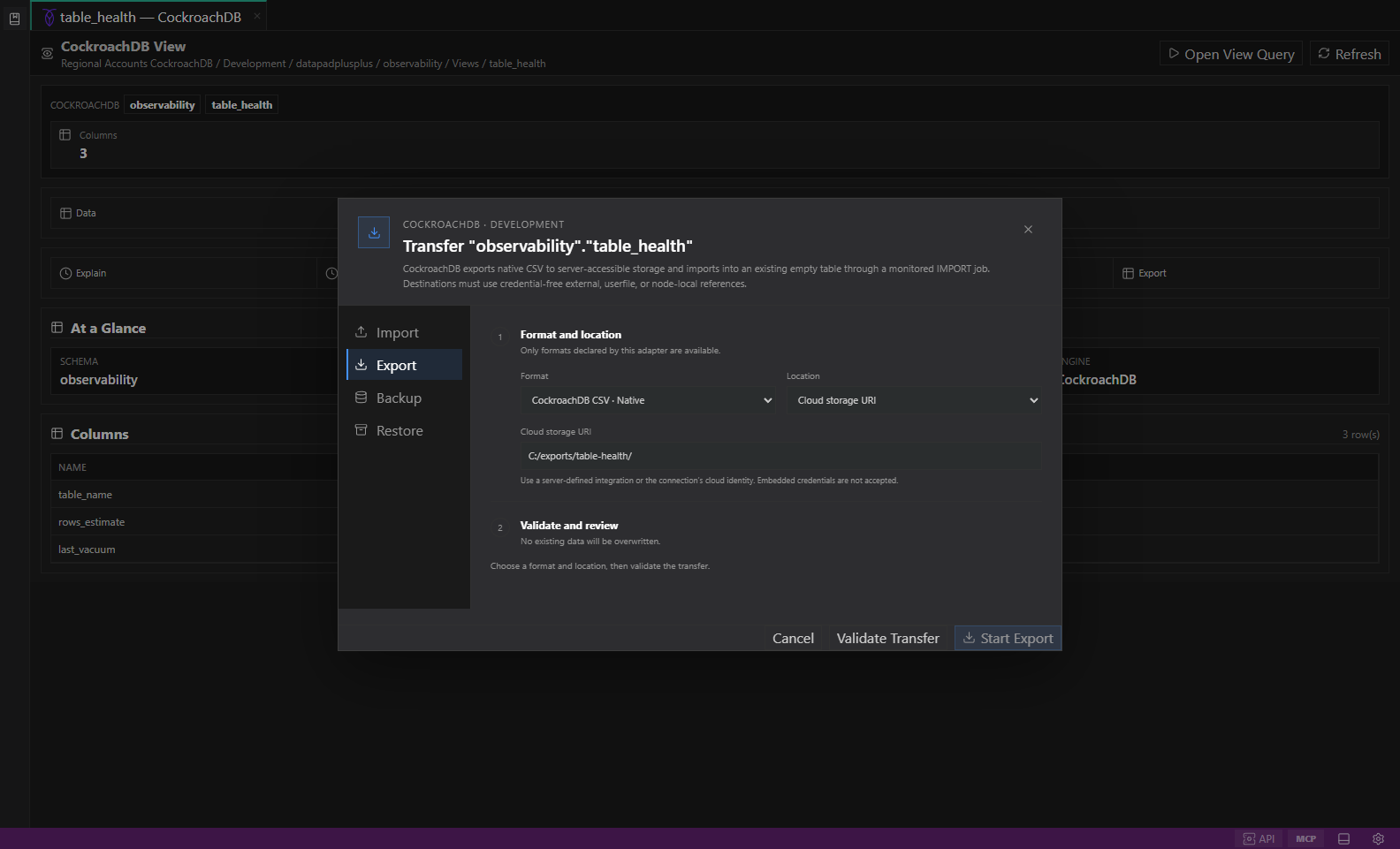
Native datastore transfer. Selected objects, native or portable formats, destination options, validation, and conflict-safe review. Open full size - 2
Choose a datastore-appropriate format
Tables commonly support CSV, JSON, or NDJSON. MongoDB can use JSON, Extended JSON, NDJSON, CSV, or BSON where supported. Redis key workflows use JSON, NDJSON, or snapshot envelopes depending on type.
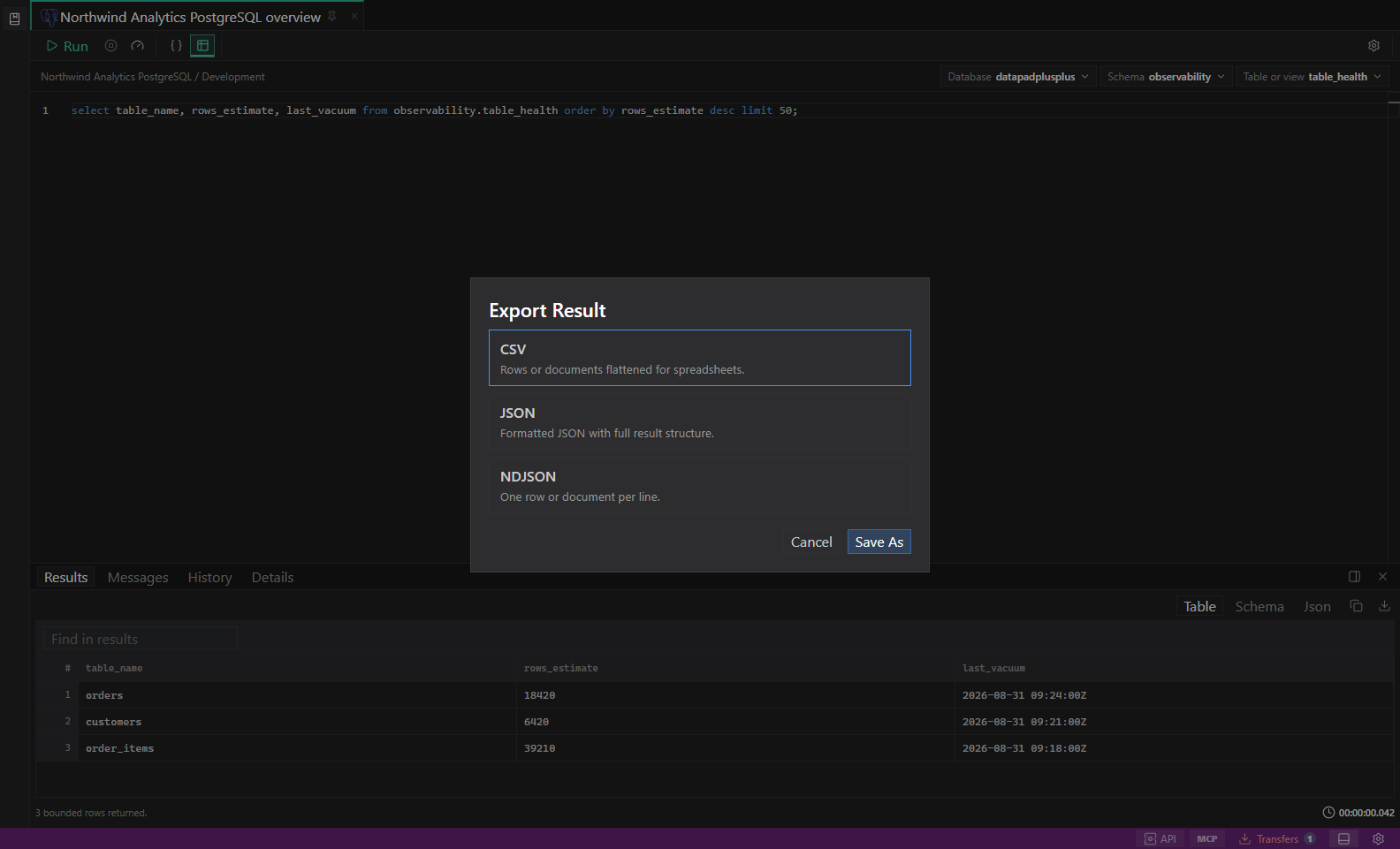
Result export dialog. Payload-aware CSV, JSON, NDJSON, and text exports with secret redaction. Open full size - 3
Review the preview
Confirm the backend-owned selection, destination type, fail-on-conflict policy, target identity, read-only state, environment risk, and any scan or cost warning before execution.
- 4
Follow the transfer job
For new connections, export a small object or validate mode before larger volumes. Transfers Center keeps progress, cancellation, warnings, retry state, native job identifiers, and completed artifacts visible.
- 5
Store workspace backups separately
Workspace bundles and application backups protect saved work. They are different from datastore backups and should be secured with passphrases.
Task and control reference
The workbench keeps the active connection, environment, target scope, query mode, and panel state visible. Review that context before you run, edit, export, or administer anything.
Safety boundaries
Troubleshooting
| Symptom | What to check |
|---|---|
| A control is disabled | Read its disabled reason, then verify target scope, connection health, read-only mode, environment policy, and feature maturity. |
| The screen does not match this guide | Confirm the app version and platform, refresh the active tab, and check whether the feature is marked Experimental, Plan only, or Unavailable. |
| The operation produces no rows | Open Messages and History, verify the selected datastore scope, replace the sample object names with names from your datastore, and retry with a bounded read. |