Getting started
Install And Update DataPad++
Download the right desktop artifact, install it, and understand updater behavior.
Prerequisites
- Install the current DataPad++ desktop pre-release and open the workspace where you want to organize your connections and saved work.
- Have access to a datastore or database file you are authorized to inspect. Start read-only with a least-privileged account.
Quickstart
- 1
Open the Download page
Choose Download from the site navigation. The page reads the latest GitHub Releases and highlights the best artifact for your platform.
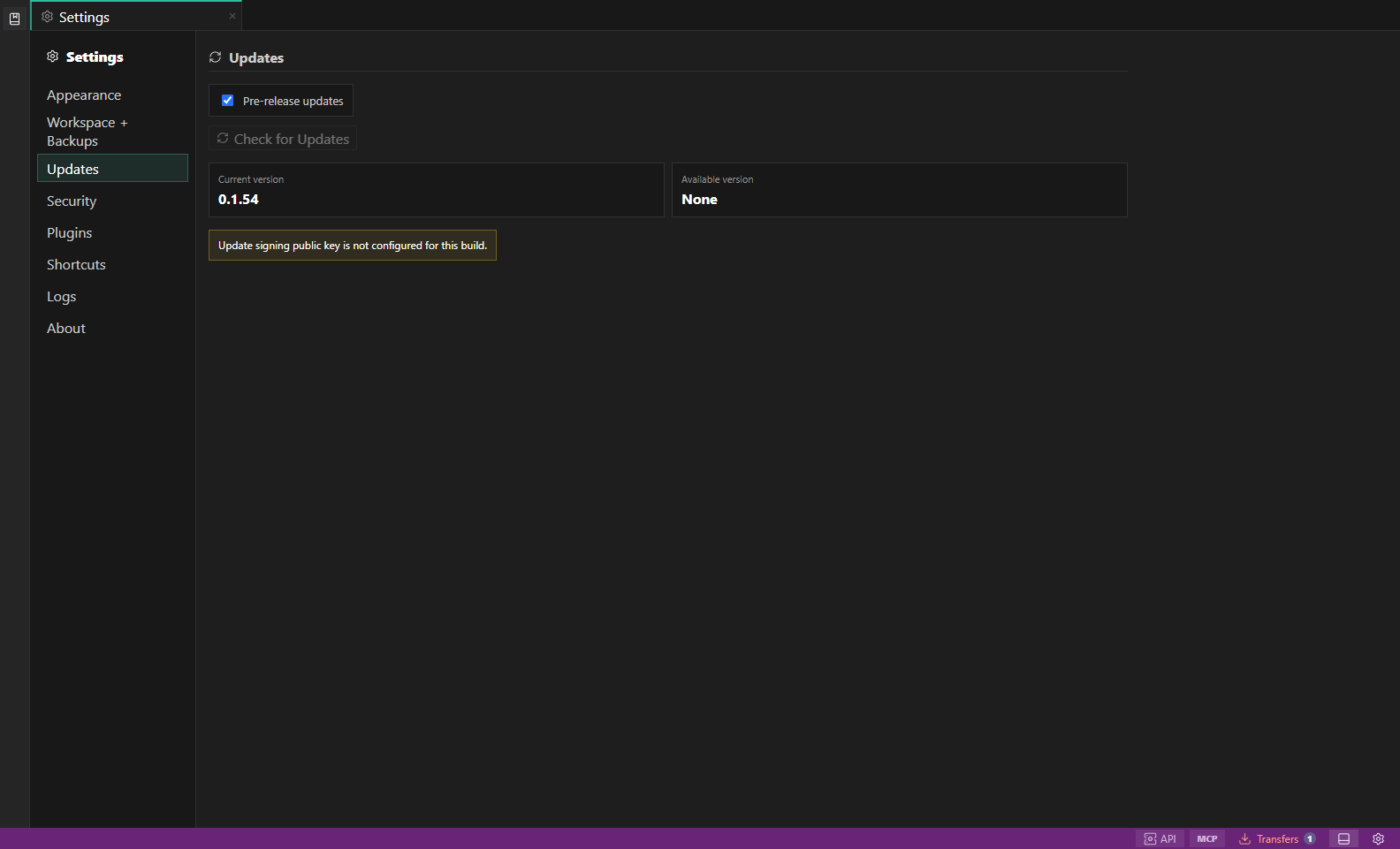
Update settings. Update channel, current version, available version, and install controls for the desktop app. Open full size - 2
Pick the installer for your operating system
Windows users should prefer the installer or MSI. Linux users should prefer AppImage, then package formats. macOS users should prefer the DMG when it is available.
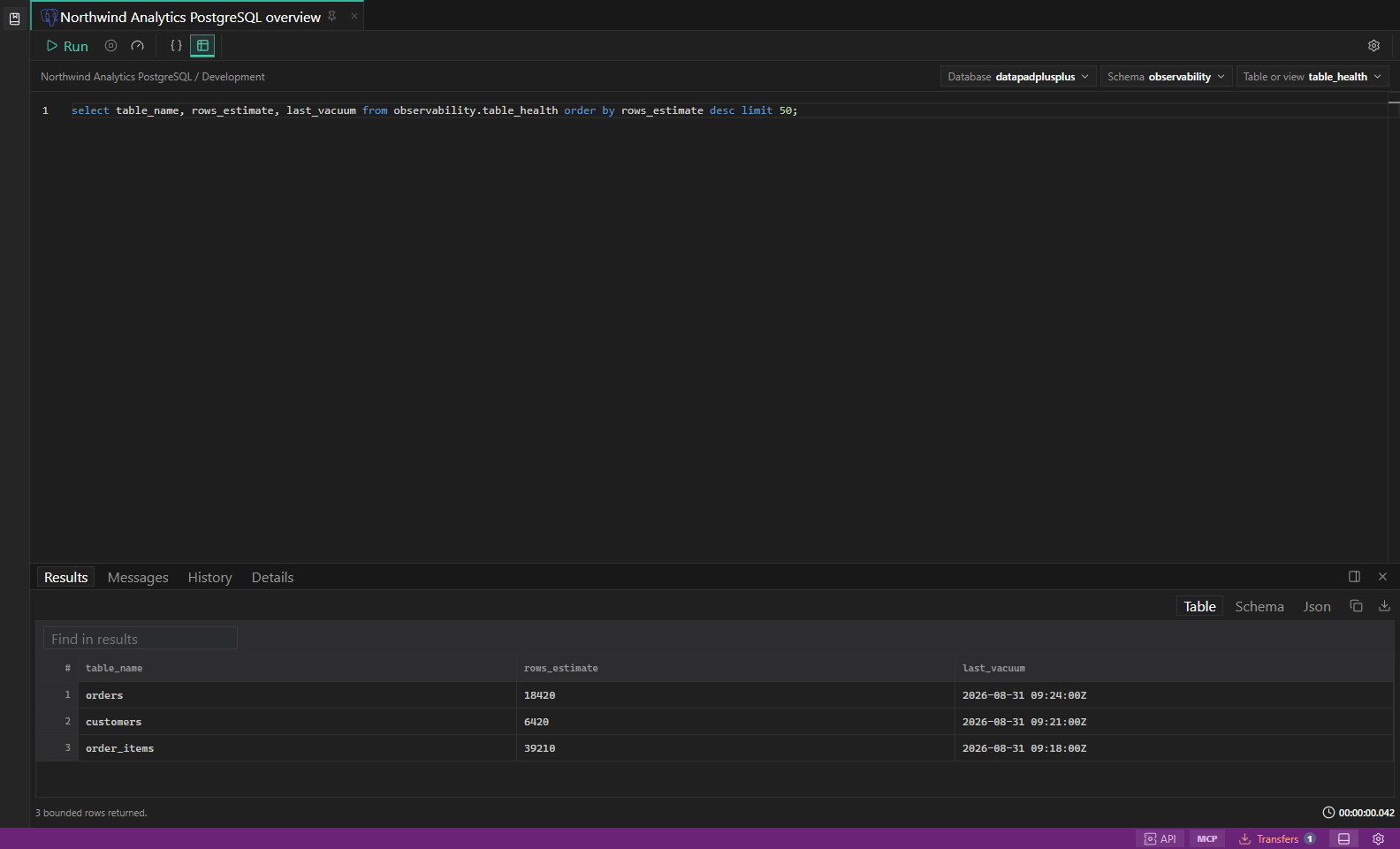
Workbench overview. Hero image showing the full DataPad++ desktop workspace. Open full size - 3
Avoid source archives
GitHub source zip and tar archives are repository snapshots. They are useful for contributors but are not desktop app installers.
- 4
Launch the app after installation
Open DataPad++ from your operating system launcher. Start with a local or read-only connection until you are familiar with guardrails.
- 5
Review update availability
Release builds include updater metadata when signing assets are present. Versions with SemVer prerelease metadata show a bottom-left Pre-release badge and automatically include pre-release updates on first use. You can opt out in Settings → Updates and remain on stable-only checks.
Task and control reference
- DataPad++ is pre-release software, so release artifacts can change while packaging matures.
- macOS Intel builds are not currently part of the expected release matrix.
Safety boundaries
Troubleshooting
| Symptom | What to check |
|---|---|
| A control is disabled | Read its disabled reason, then verify target scope, connection health, read-only mode, environment policy, and feature maturity. |
| The screen does not match this guide | Confirm the app version and platform, refresh the active tab, and check whether the feature is marked Experimental, Plan only, or Unavailable. |
| The operation produces no rows | Open Messages and History, verify the selected datastore scope, replace the sample object names with names from your datastore, and retry with a bounded read. |