Connections, environments, and secrets
Use Environments And Variables
Keep risk, secrets, and target context visible while you work.
Prerequisites
- Install the current DataPad++ desktop pre-release and open the workspace where you want to organize your connections and saved work.
- Have access to a datastore or database file you are authorized to inspect. Start read-only with a least-privileged account.
Quickstart
- 1
Create environment labels
Define environments such as Local, Development, QA, Stage, Production, or DR with distinct colors and risk levels.
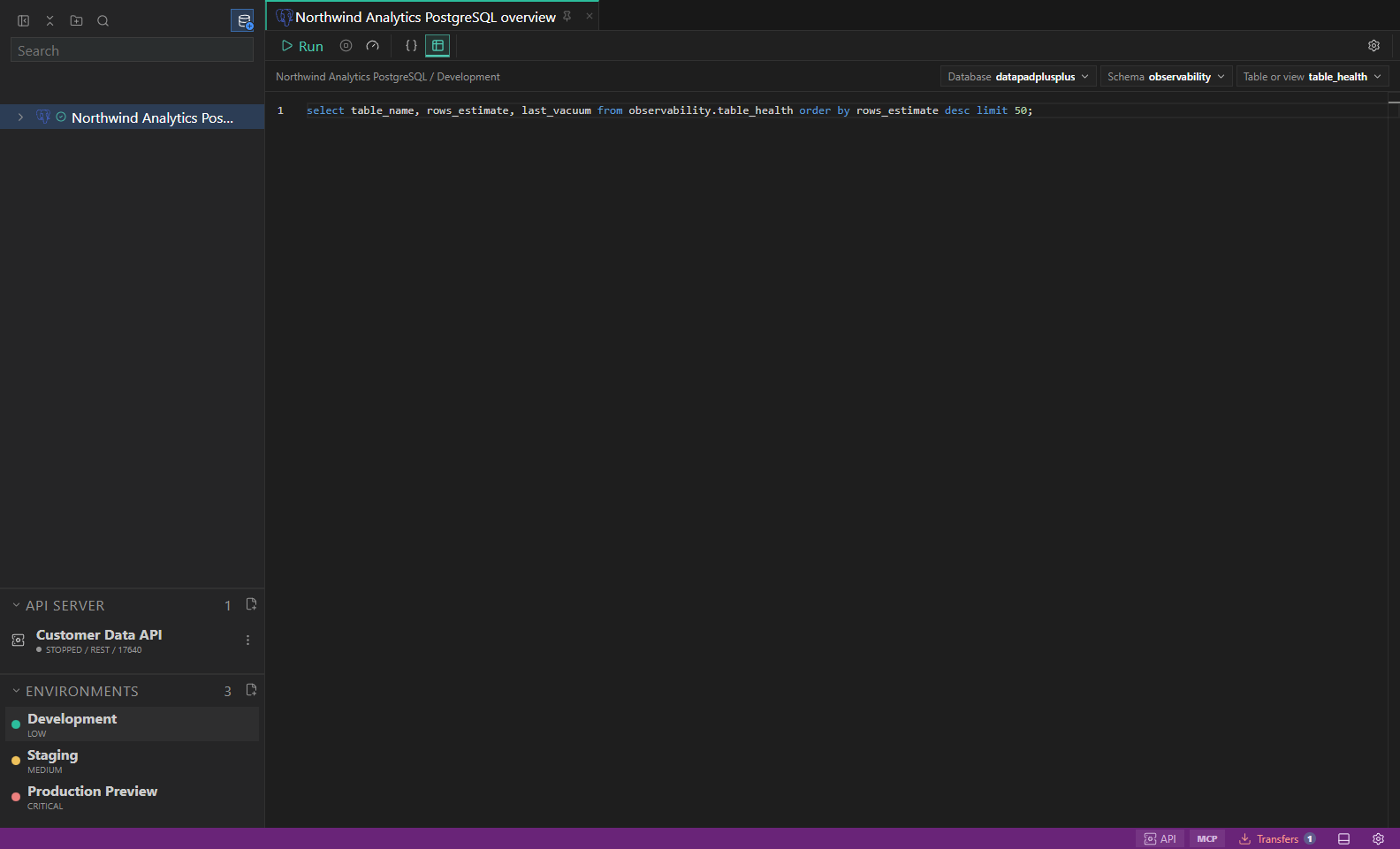
Library and environments. Saved connections, folders, scripts, and inherited environment labels. Open full size - 2
Attach environments to folders
Assign an environment to a Library folder so child connections and saved work inherit the nearest context.
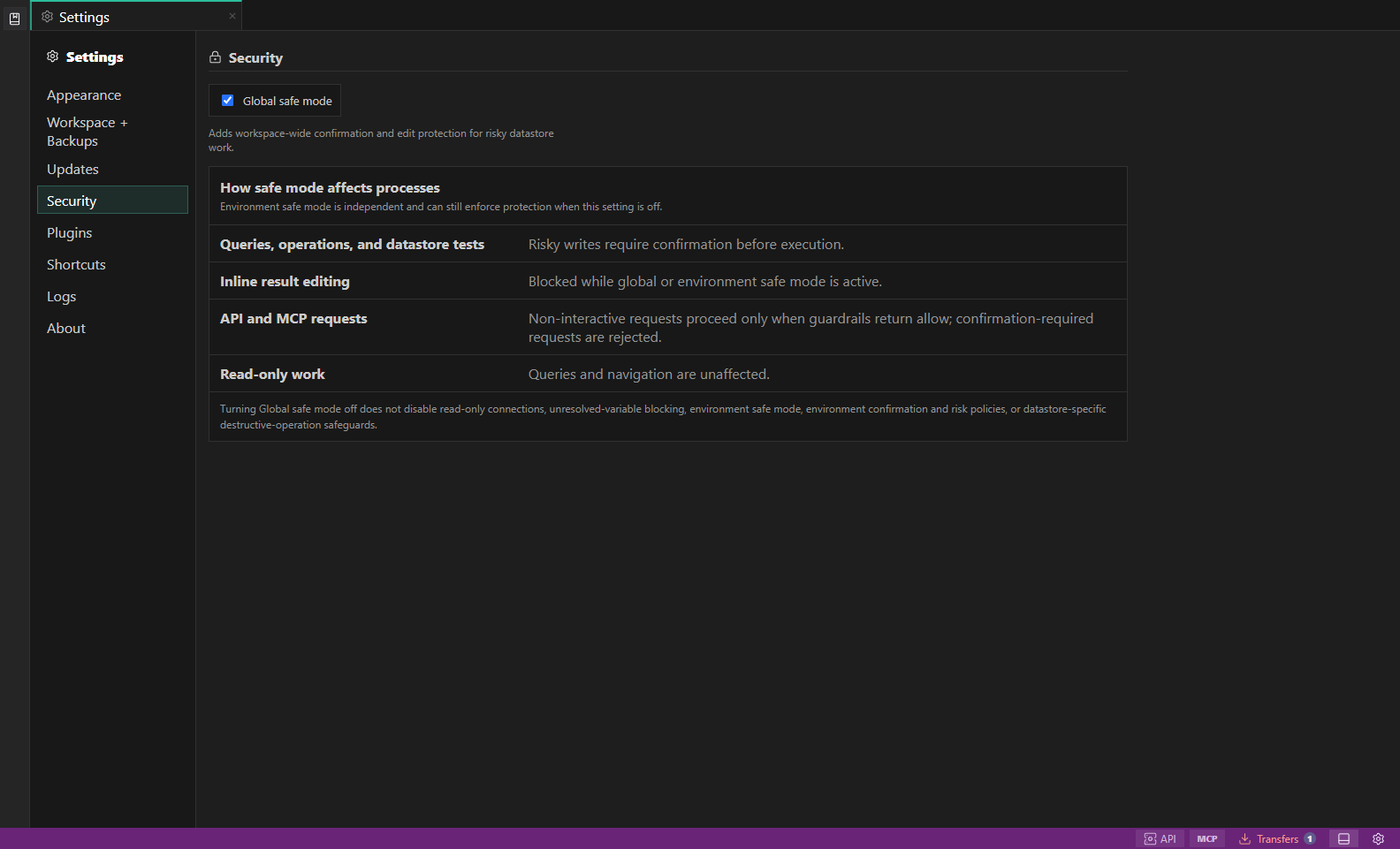
Security settings. Global safe mode explains how risky writes, inline edits, API and MCP requests, and read-only work are guarded. Open full size - 3
Use variables in repeatable work
Reference environment variables with the supported {{VAR_NAME}} syntax in connection strings or compatible editors.
- 4
Keep secrets masked
Store secret variables through desktop-safe storage where available. Secret values should resolve only at execution time.
- 5
Respect confirmation rules
Risky actions should require confirmation or stay preview-only when the environment says the target is sensitive.
Task and control reference
The workbench keeps the active connection, environment, target scope, query mode, and panel state visible. Review that context before you run, edit, export, or administer anything.
Safety boundaries
Troubleshooting
| Symptom | What to check |
|---|---|
| A control is disabled | Read its disabled reason, then verify target scope, connection health, read-only mode, environment policy, and feature maturity. |
| The screen does not match this guide | Confirm the app version and platform, refresh the active tab, and check whether the feature is marked Experimental, Plan only, or Unavailable. |
| The operation produces no rows | Open Messages and History, verify the selected datastore scope, replace the sample object names with names from your datastore, and retry with a bounded read. |