
Plugins
Use The Workspaces Plugin
Create, switch, rename, and safely maintain named local DataPad++ workspaces.
Prerequisites
- Open the workspace where you want this plugin to be available and review its current maturity in Settings → Plugins.
- Confirm the platform boundary: Desktop app; stored in the local application workspace registry.
- Use only connections, environments, resources, and credentials you are authorized to access.
Quickstart
- 1
Enable Workspaces
Open Settings → Plugins, find Workspaces under Experimental Plugins, and enable Workspaces switcher.
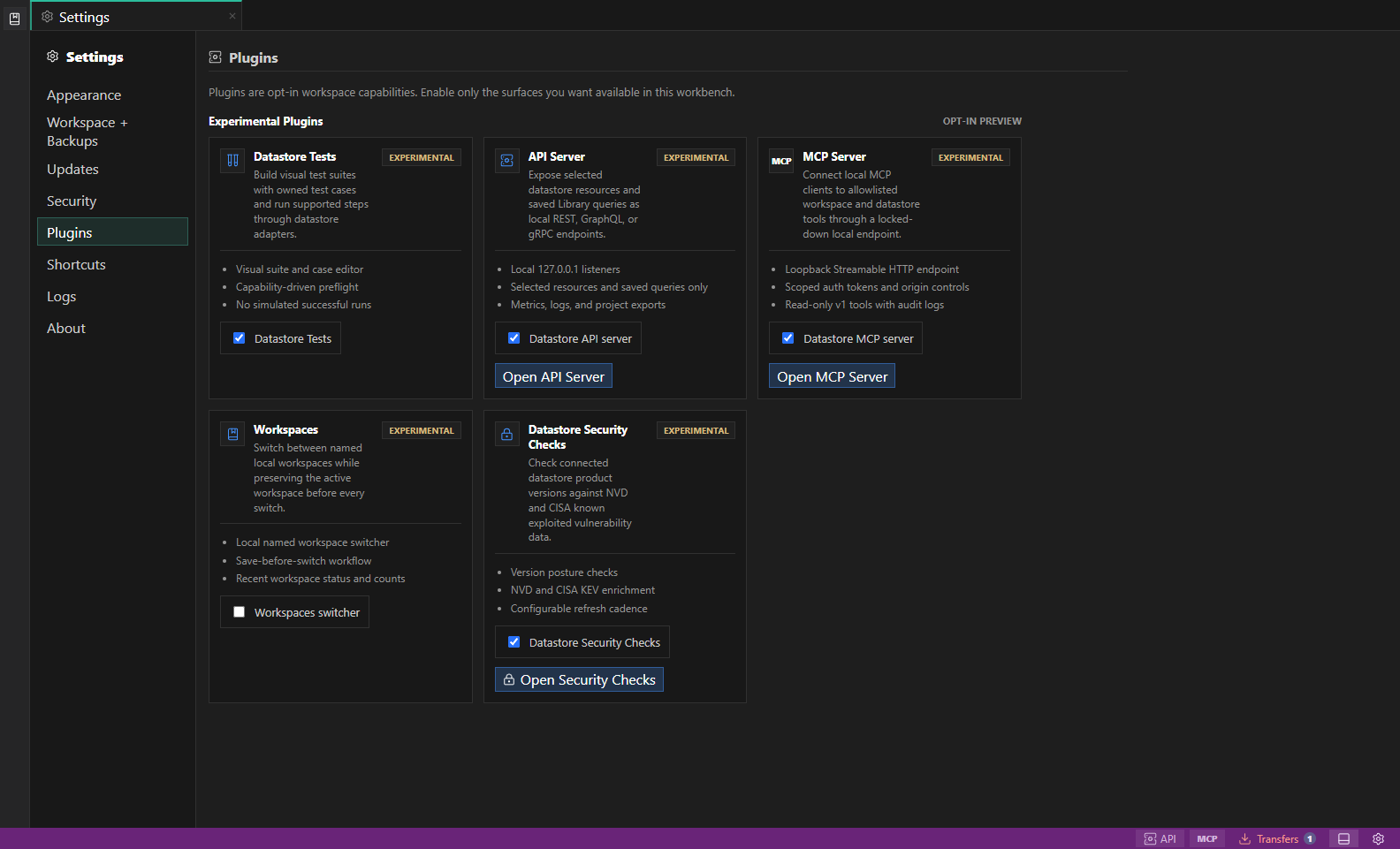
Experimental plugin settings. Experimental plugins identify their current feature boundary before you enable them for the workspace. Open full size - 2
Create a named workspace
Open Library, expand Workspaces, choose New workspace, enter a short recognizable name, and choose Create. DataPad++ saves the current workspace before switching.
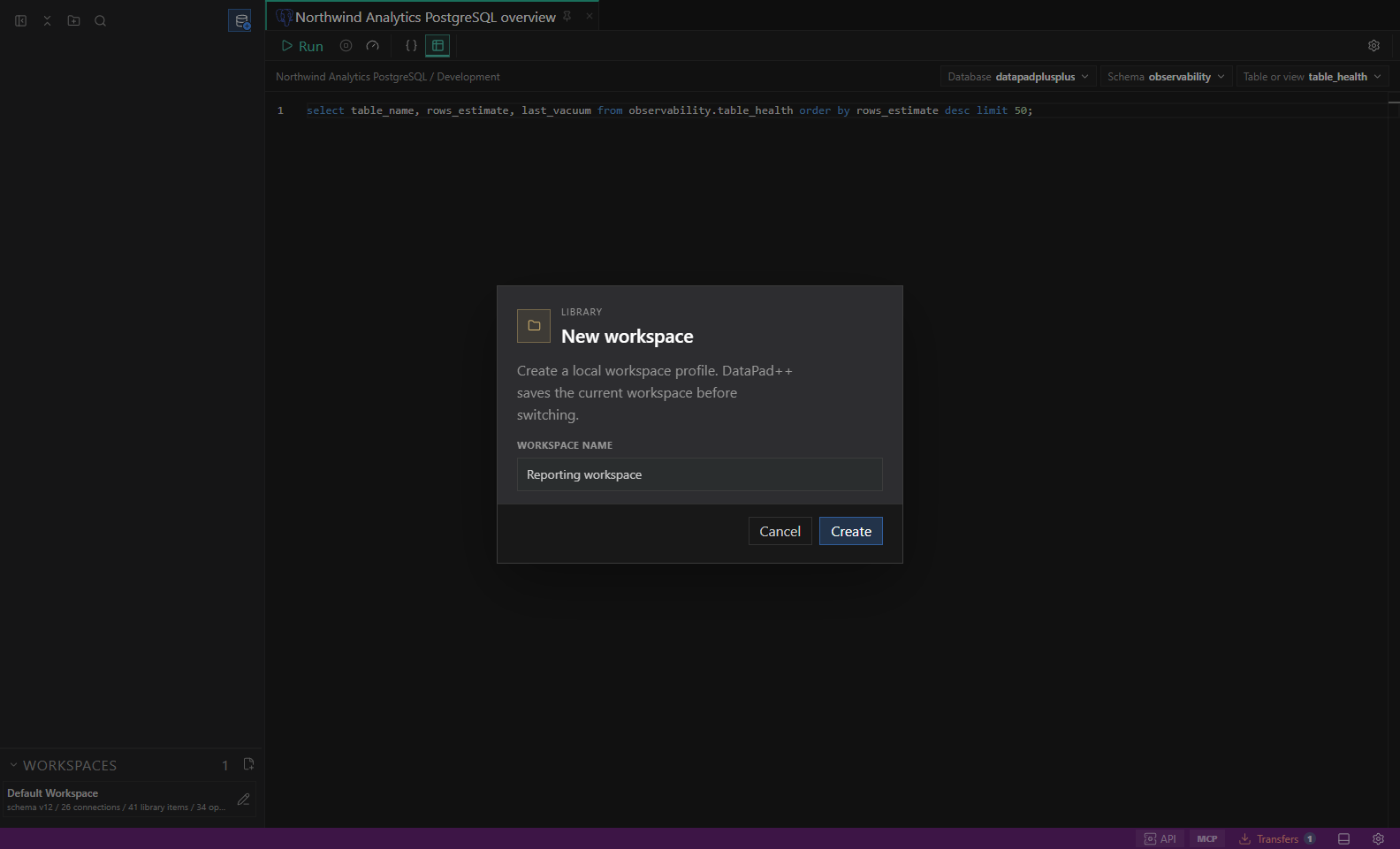
Create a named workspace. The Workspaces section creates and switches named local workspace profiles after saving the current workspace. Open full size - 3
Switch workspaces
Select another workspace in the Workspaces section. Confirm that the active name, connection count, tab count, Library work, Explorer state, and supported window layout match the intended context.
- 4
Rename without moving data
Use the rename action beside a workspace. Renaming changes the profile label only; it does not rewrite the workspace contents or connected datastore.
- 5
Back up important workspace configuration
Use Workspace + Backups to export or automatically back up DataPad++ configuration. Back up each connected datastore separately with its supported native tools.
Features
| Feature | How to use it |
|---|---|
| Named workspace profiles | Create a separate local profile for a project, team, or operating context. |
| Save before switching | DataPad++ persists the active workspace before loading the selected profile. |
| Workspace status | See which workspace is active together with connection, tab, and saved-work counts. |
| Create and rename | Add a workspace from the Library section and rename it without changing its contents. |
| Context restoration | Restore the selected workspace's connections, Explorer state, tabs, and supported window layout. |
Availability and data boundary
| Area | Behavior |
|---|---|
| Maturity | Experimental |
| Availability | Desktop app; stored in the local application workspace registry. |
| Enablement | Application-local registry setting. |
| Data boundary | Stores workspace names, locations, counts, recent status, and the active workspace id. It does not copy connected datastore data. |
| When disabled | The switcher is hidden and the current workspace remains active. Existing workspace profiles stay on disk. |
Task and control reference
| Surface or task | How to use it |
|---|---|
| Workspaces section | Lists local workspace profiles, highlights the active profile, and shows summary counts. |
| New workspace | Creates a new local profile after saving the current workspace. |
| Switch | Saves the current workspace, loads the selected workspace, and restores its navigation and tabs. |
| Rename | Changes the profile name without modifying connections or datastore data. |
| Disable | Hides the switcher while leaving the active and saved workspace profiles intact. |
Common failure states
| Problem | Resolution |
|---|---|
| The expected surface is hidden | Use the activity bar, View command, status-bar entry point, or Ctrl/Cmd+J for the panel and Ctrl/Cmd+B for the sidebar. |
| The tab has stale context | Refresh the tab, reselect its connection and scope, or open a new tab from the intended Explorer object. |
| A preview cannot execute | The feature may be preview-only for that datastore. Keep the generated plan or use the documented native-tool fallback. |