Getting started
First Launch Checklist
Orient yourself in the workbench before connecting to important systems.
Prerequisites
- Install the current DataPad++ desktop pre-release and open the workspace where you want to organize your connections and saved work.
- Have access to a datastore or database file you are authorized to inspect. Start read-only with a least-privileged account.
Quickstart
- 1
Open the workspace
The main window opens into the workbench shell with navigation, Library, editor tabs, results, and detail panels.
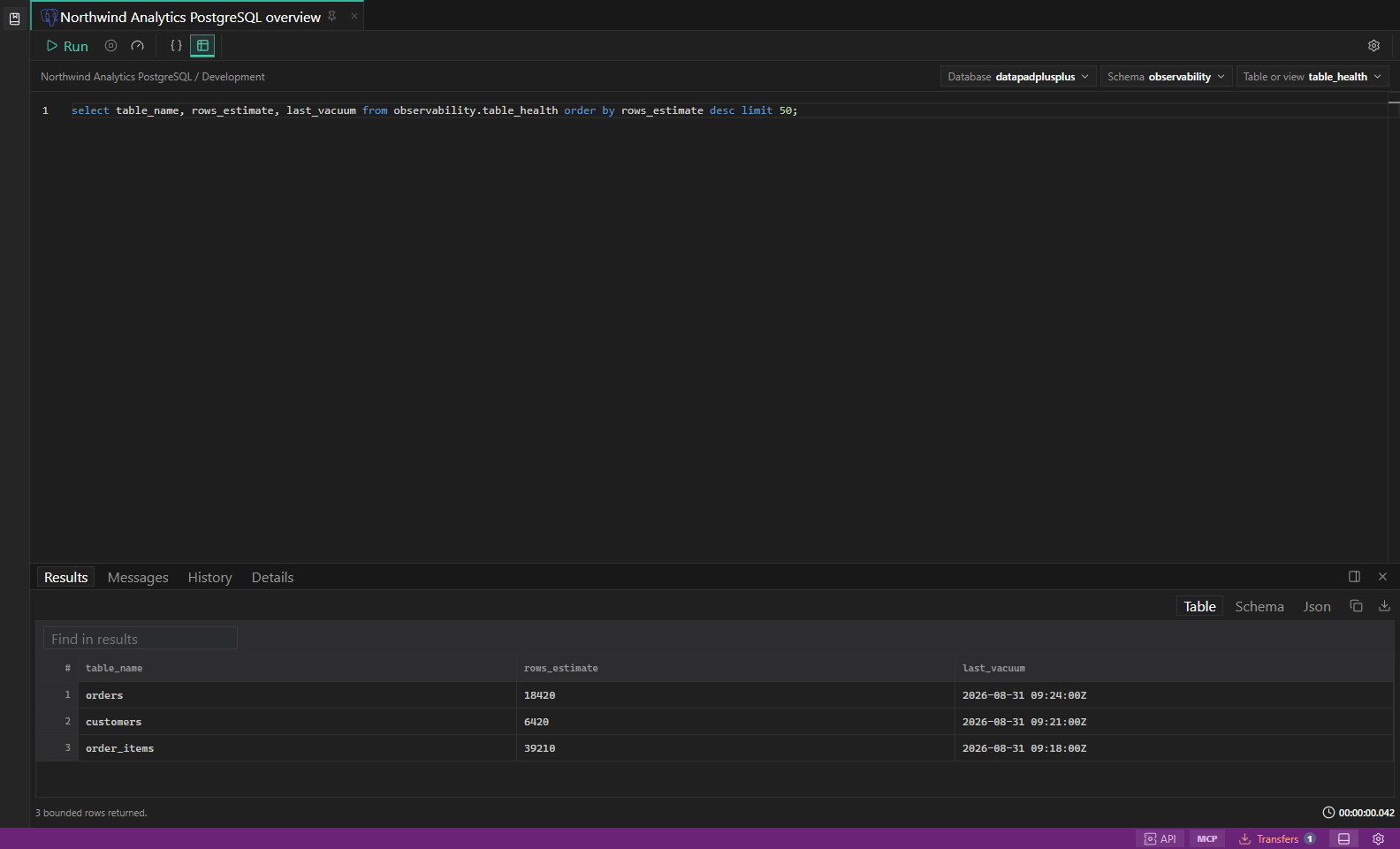
Workbench overview. Hero image showing the full DataPad++ desktop workspace. Open full size - 2
Review the Library
Use the Library as the home base for connections, folders, saved queries, scripts, tests, snippets, notes, and environments.
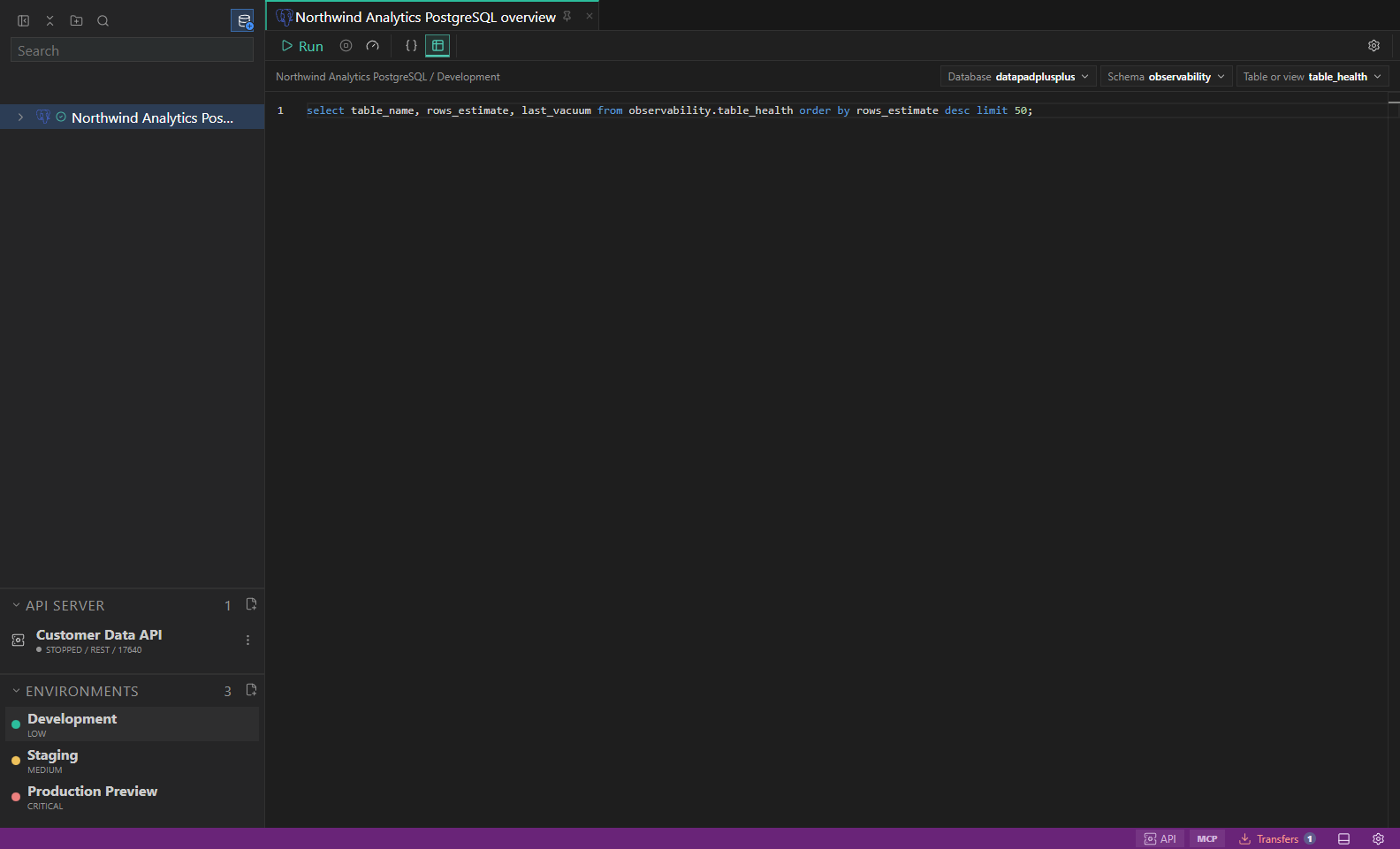
Library and environments. Saved connections, folders, scripts, and inherited environment labels. Open full size - 3
Set a safe default posture
Global safe mode is off by default for new workspaces. Enable it for workspace-wide confirmation and inline-edit protection, or create a Local, QA, read-only, or safe-mode environment before connecting to production-like systems. Environment protections remain independent.
- 4
Open Settings
Check Appearance, Workspace, Backups, Security, Shortcuts, and Health before storing long-lived work.
- 5
Start with a datastore you control
For your first connection, use a development or staging datastore—or a local database file you own—with a least-privileged, read-only account. You can then learn Explorer, query, and result behavior against your own schema and data.
Task and control reference
The workbench keeps the active connection, environment, target scope, query mode, and panel state visible. Review that context before you run, edit, export, or administer anything.
Safety boundaries
Troubleshooting
| Symptom | What to check |
|---|---|
| A control is disabled | Read its disabled reason, then verify target scope, connection health, read-only mode, environment policy, and feature maturity. |
| The screen does not match this guide | Confirm the app version and platform, refresh the active tab, and check whether the feature is marked Experimental, Plan only, or Unavailable. |
| The operation produces no rows | Open Messages and History, verify the selected datastore scope, replace the sample object names with names from your datastore, and retry with a bounded read. |