
Exploring and IntelliSense
Use SQL Relationship Diagrams
Understand table shape, joins, and schema boundaries before writing broad SQL.
Prerequisites
- Install the current DataPad++ desktop pre-release and open the workspace where you want to organize your connections and saved work.
- Have access to a datastore or database file you are authorized to inspect. Start read-only with a least-privileged account.
Quickstart
- 1
Open the Relationship map
Use the secondary Relationship map action from a SQL-family Explorer after choosing the schemas and tables you want to understand.
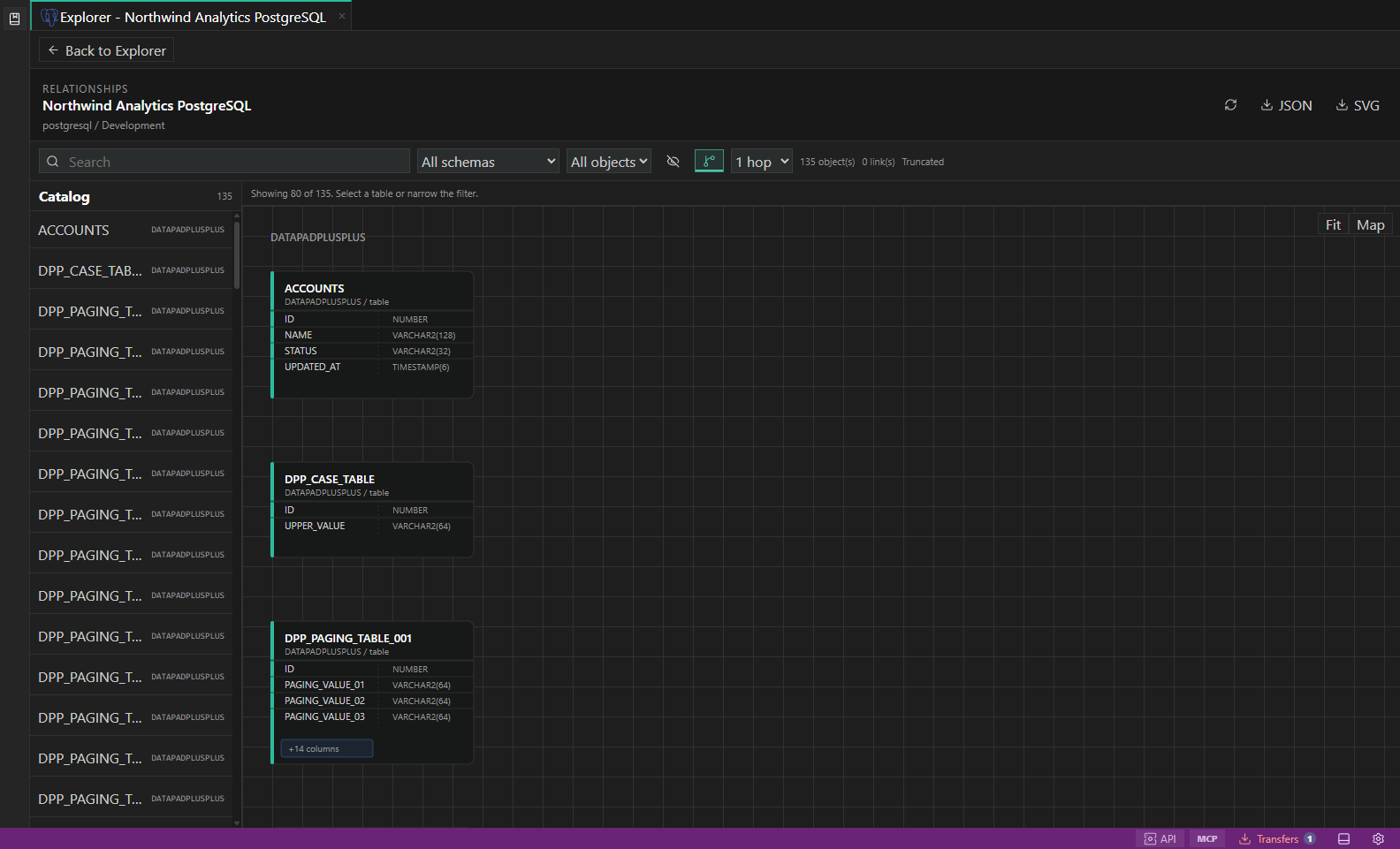
SQL relationship explorer. Focused schema diagrams with table cards, relationship ends, and object inspectors. Open full size - 2
Filter before loading broadly
Large enterprise schemas should be explored in focused slices. Filter schemas or tables before expecting a useful diagram.
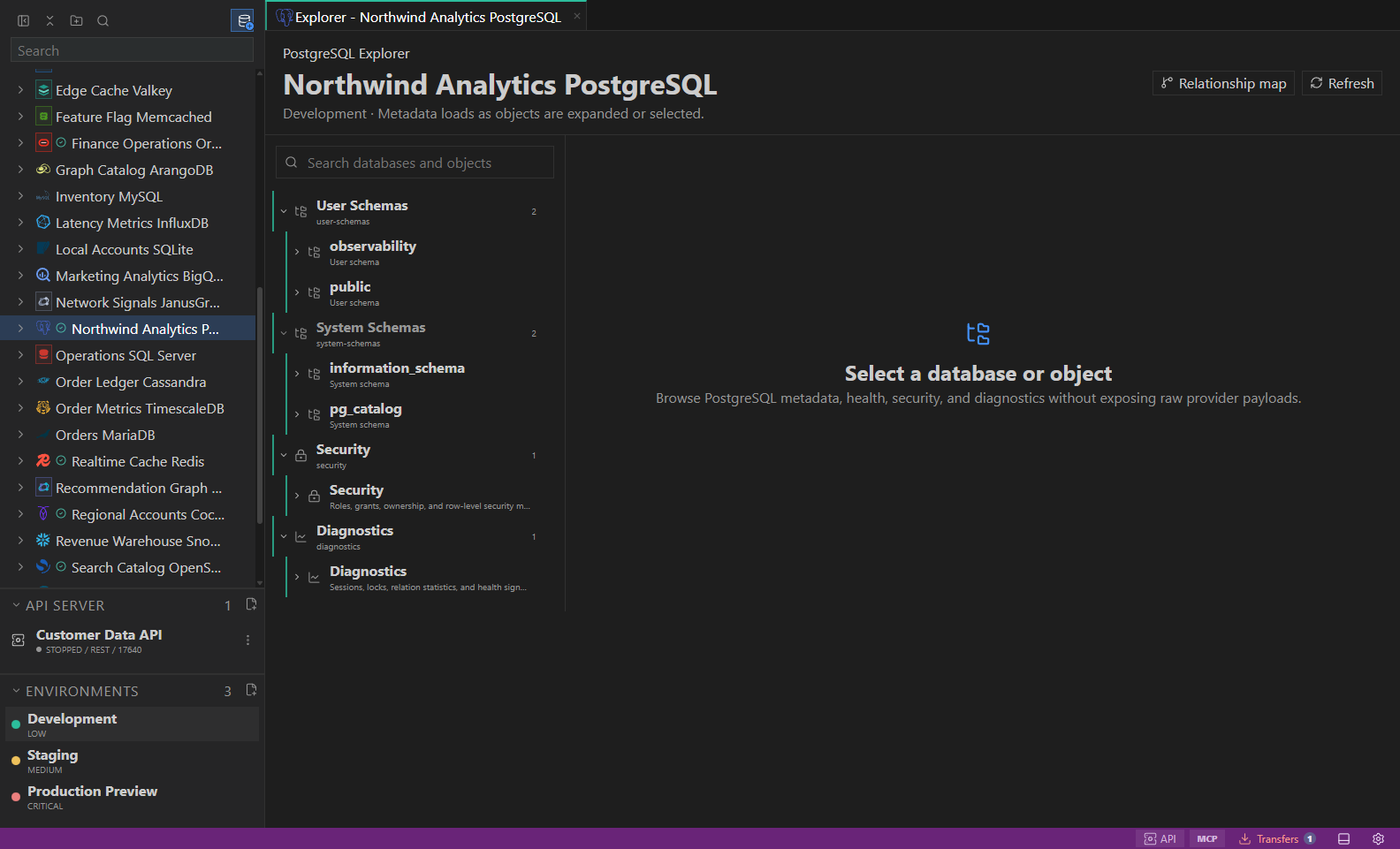
Object explorer. Datastore-owned tree with native objects and context actions. Open full size - 3
Read table cards and columns
Each card summarizes a table and its columns so primary keys, foreign keys, and interesting fields stay visible together.
- 4
Inspect relationship ends
Relationship labels distinguish declared links from inferred links and show the direction and cardinality DataPad++ can explain.
- 5
Use the diagram as a query aid
Open scoped object actions or copy relationship context into SQL builders after you have verified the join path.
- 6
Keep risky schema work preview-first
Schema operations, inferred links, and admin actions should remain reviewable plans until the target and environment are proven.
Task and control reference
The workbench keeps the active connection, environment, target scope, query mode, and panel state visible. Review that context before you run, edit, export, or administer anything.
Safety boundaries
Troubleshooting
| Symptom | What to check |
|---|---|
| A control is disabled | Read its disabled reason, then verify target scope, connection health, read-only mode, environment policy, and feature maturity. |
| The screen does not match this guide | Confirm the app version and platform, refresh the active tab, and check whether the feature is marked Experimental, Plan only, or Unavailable. |
| The operation produces no rows | Open Messages and History, verify the selected datastore scope, replace the sample object names with names from your datastore, and retry with a bounded read. |