
Connections, environments, and secrets
Create And Edit Connections
Choose a connection method, open or create a local database, manage saved credentials, and leave an edit safely.
Prerequisites
- Install the current DataPad++ desktop pre-release and open the workspace where you want to organize your connections and saved work.
- Have access to a datastore or database file you are authorized to inspect. Start read-only with a least-privileged account.
Quickstart
- 1
Open the connection dialog
Choose Create connection, the highlighted database-plus button at the far right of the Library toolbar. To edit an existing profile, open its connection settings. Editing a profile does not change the selected query tab.
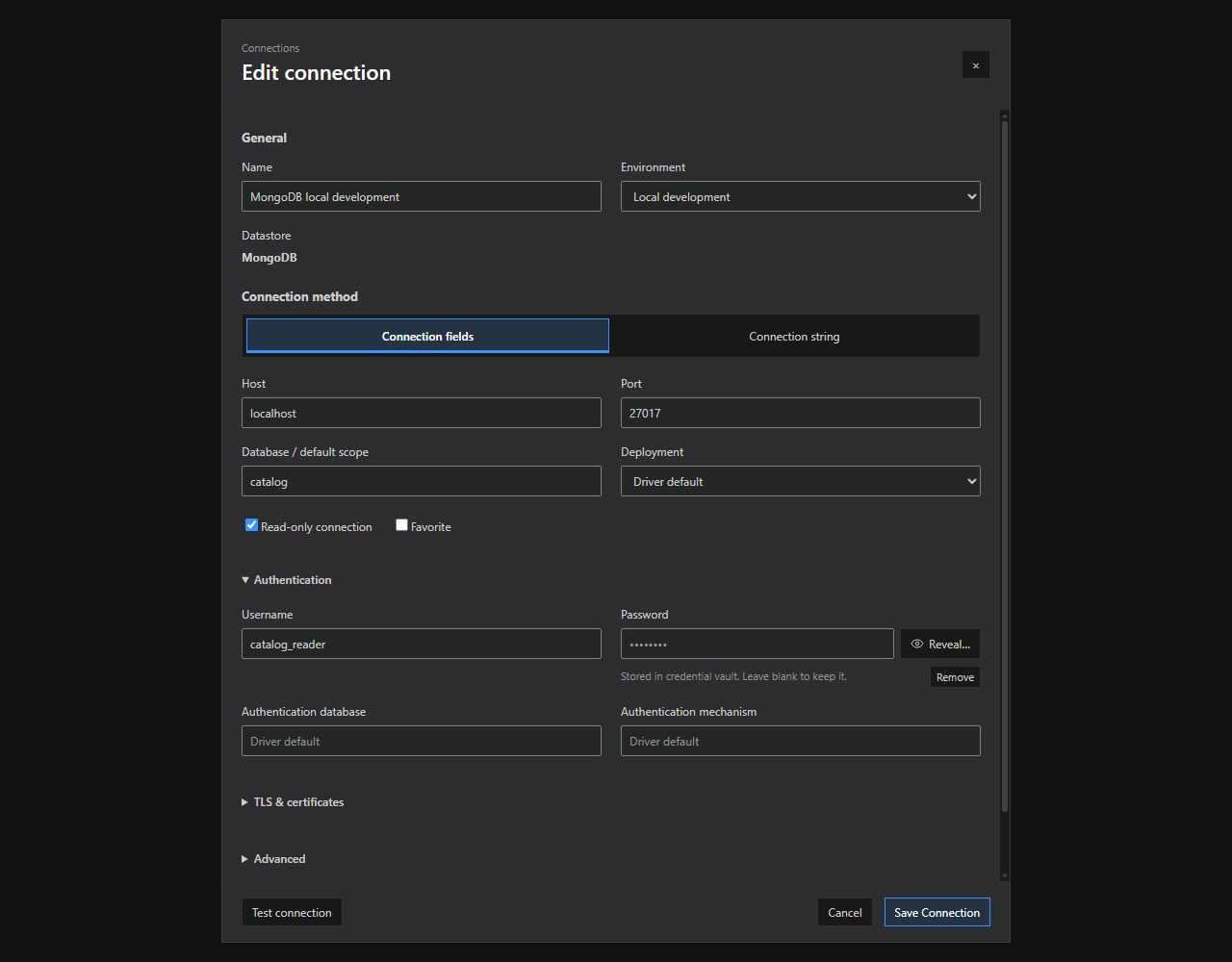
Connection editor. Connection method tabs, grouped options, and saved-credential controls in the current connection dialog. Open full size - 2
Choose a Connection method tab
Select the datastore, then choose Connection fields, Connection string, Local database file, or a cloud/endpoint method where supported. Use Left/Right or Home/End to navigate the tabs. Switching methods retains the unsaved draft; Runtime support and limitations explains adapter restrictions.
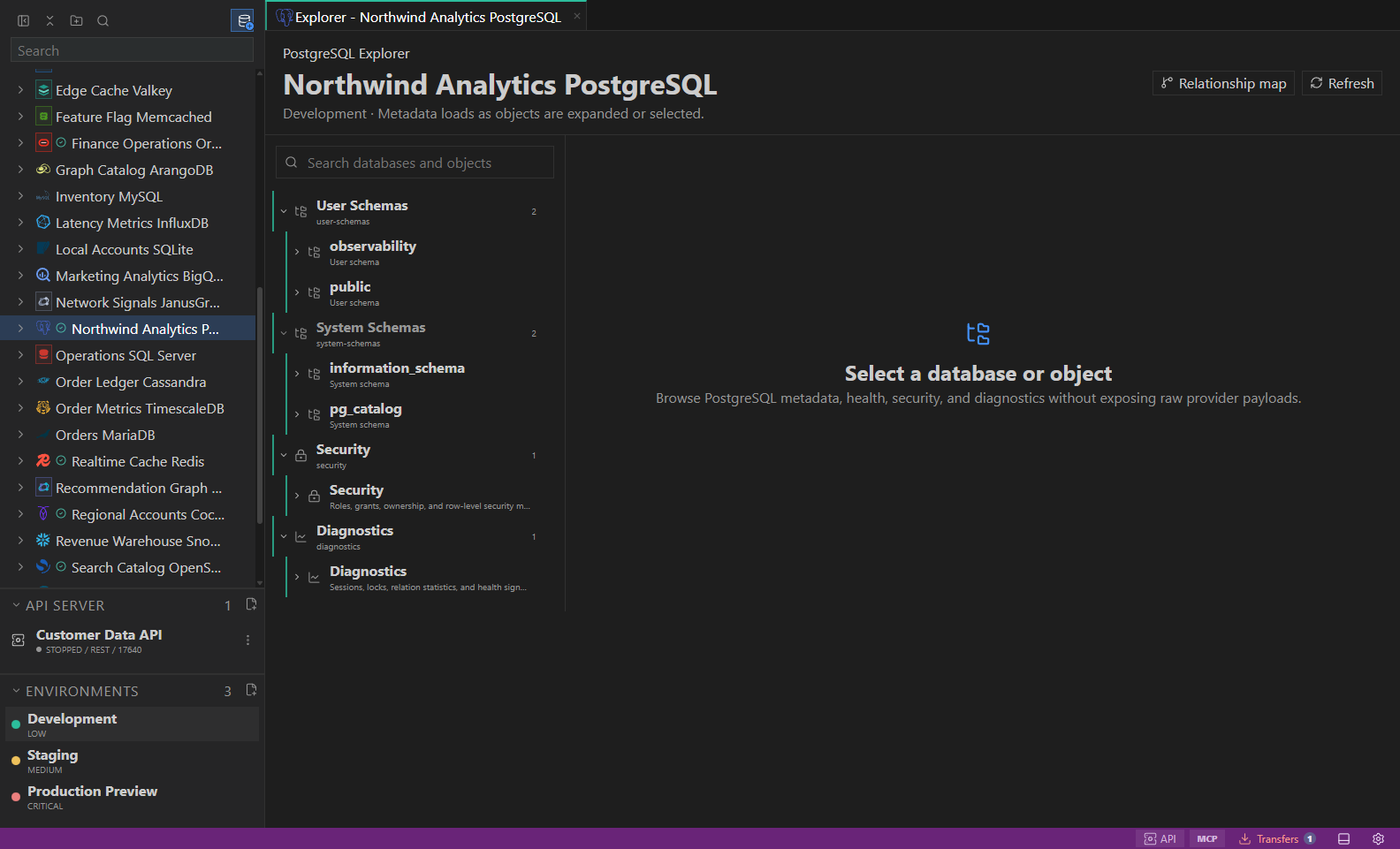
Object explorer. Datastore-owned tree with native objects and context actions. Open full size - 3
Fill in General settings
Use a clear Name, select an Environment, and enter the endpoint or file details for that method. Enable Read-only connection for initial exploration. Changing an existing profile does not change its datastore type.
- 4
Expand only the options you need
Authentication, TLS & certificates, and Advanced are collapsible sections shown where applicable. Type passwords directly into their fields; paste a complete string under Connection string. Leave optional settings at Driver default unless your server requires them.
- 5
Test, then save the connection
Choose Test connection when available and review its result. Testing is optional and does not save the profile. Save Connection saves the profile and all credential changes together; there is no separate password-save button. New local databases use Create Database and Save Connection instead.
- 6
Organize in the Library
Place the connection in a folder that carries the right environment inheritance for related saved work.
Task and control reference
- Connections begin each session without a health badge. A manual test or real datastore operation supplies the evidence for a status; startup does not test every saved connection.
- Browser preview cannot save or reveal OS-vault credentials or create local database files. Use the desktop application for these tasks.
View, replace, or remove a saved credential
A fixed mask indicates a saved value, not an empty password. Leave the field blank to keep it. The whole connection string is an opaque OS-vault secret, stored exactly as entered; workspace files contain only a reference.
- 1
Reveal deliberately
Choose Reveal… beside a saved value, then Reveal saved value. Anyone viewing your screen can see it. The read-only value hides after 30 seconds or when the window loses focus; Hide conceals it immediately. Closing the editor, switching workspace, or locking also clears the reveal.
- 2
Replace or undo
Choose Hide before entering a replacement. Type the new value and choose Save Connection. The eye icon shows or hides an unsaved value; Undo change abandons a pending change. Clearing a replacement keeps the original saved credential.
- 3
Remove explicitly
For supported password fields, choose Remove and then Save Connection. Blank input alone never deletes a saved credential. A connection-string profile still requires a complete string, so that field has no Remove action.
Open or create a local database
- 1
Select Local database file
SQLite, DuckDB, and LiteDB offer this method. Choose Open existing database and Browse… to select an existing file, or Create new database for a separate new file.
- 2
Choose the new file
Choose folder… and enter Filename without its displayed extension. Selecting the folder creates nothing. SQLite and DuckDB can Include example tables and data; leave that option off for an empty database.
- 3
Create once, then connect
Choose Create Database and Save Connection. Existing files are never replaced. Test connection is unavailable until the new database exists. If file creation succeeds but saving the profile fails, retry Save Connection; the file is not created again.
Canceling after a file was created does not delete it. The discard confirmation warns that the created database file will remain on disk.
Use a MongoDB connection string from another application
Paste the entire URI into Complete connection string. DataPad++ preserves the saved string unchanged. During connection attempts only, it removes recognized Studio 3T display metadata such as 3t.connection.name and reports a warning.
This is not a blanket ignore of third-party parameters. Unrecognized Studio 3T options are rejected. SSH, TLS, authentication, and routing must use supported native options; do not remove security settings merely to make a test pass.
Cancel without losing the wrong changes
Cancel, the close button, or Escape closes an unchanged editor immediately. With unsaved changes, a centered Discard connection changes? dialog appears above the dimmed editor, with both choices visible even in a small window.
- Keep editing is focused by default. It returns to the same draft and scroll position; Escape does the same while the confirmation is open.
- Discard changes closes the editor without saving the profile or pending credentials. It does not delete an already-created local database file.
- Tab and Shift+Tab stay within the confirmation. Clicking the dimmed background does not discard anything. Cancel and close are disabled while a save or test is working.
Connection editor troubleshooting
| Symptom | What to do |
|---|---|
| Test connection is disabled | A new local file must be created first. Pending secondary credential changes or removals must be saved before testing; read the button tooltip. |
| The saved password appears blank or masked | Blank keeps the stored value. Use Reveal… and confirm to inspect it, or type a replacement and Save Connection. |
| The saved value cannot be revealed | Reopen the editor to refresh its workspace/profile context. If the vault credential is unavailable, enter a replacement. |
| Saving fails | The draft remains available. Review the application error and retry deliberately. A created local file is retained; retrying saves only the profile. |
Safety boundaries
Troubleshooting
| Symptom | What to check |
|---|---|
| A control is disabled | Read its disabled reason, then verify target scope, connection health, read-only mode, environment policy, and feature maturity. |
| The screen does not match this guide | Confirm the app version and platform, refresh the active tab, and check whether the feature is marked Experimental, Plan only, or Unavailable. |
| The operation produces no rows | Open Messages and History, verify the selected datastore scope, replace the sample object names with names from your datastore, and retry with a bounded read. |