
Workspaces, backups, and recovery
Settings, Workspace Bundles, And Backups
Configure appearance, workspace security, encrypted exports, and automatic backups.
Prerequisites
- Install the current DataPad++ desktop pre-release and open the workspace where you want to organize your connections and saved work.
- Have access to a datastore or database file you are authorized to inspect. Start read-only with a least-privileged account.
Quickstart
- 1
Open Settings as a tab
Settings opens in the workbench so you can close it like other tabs and keep context nearby.
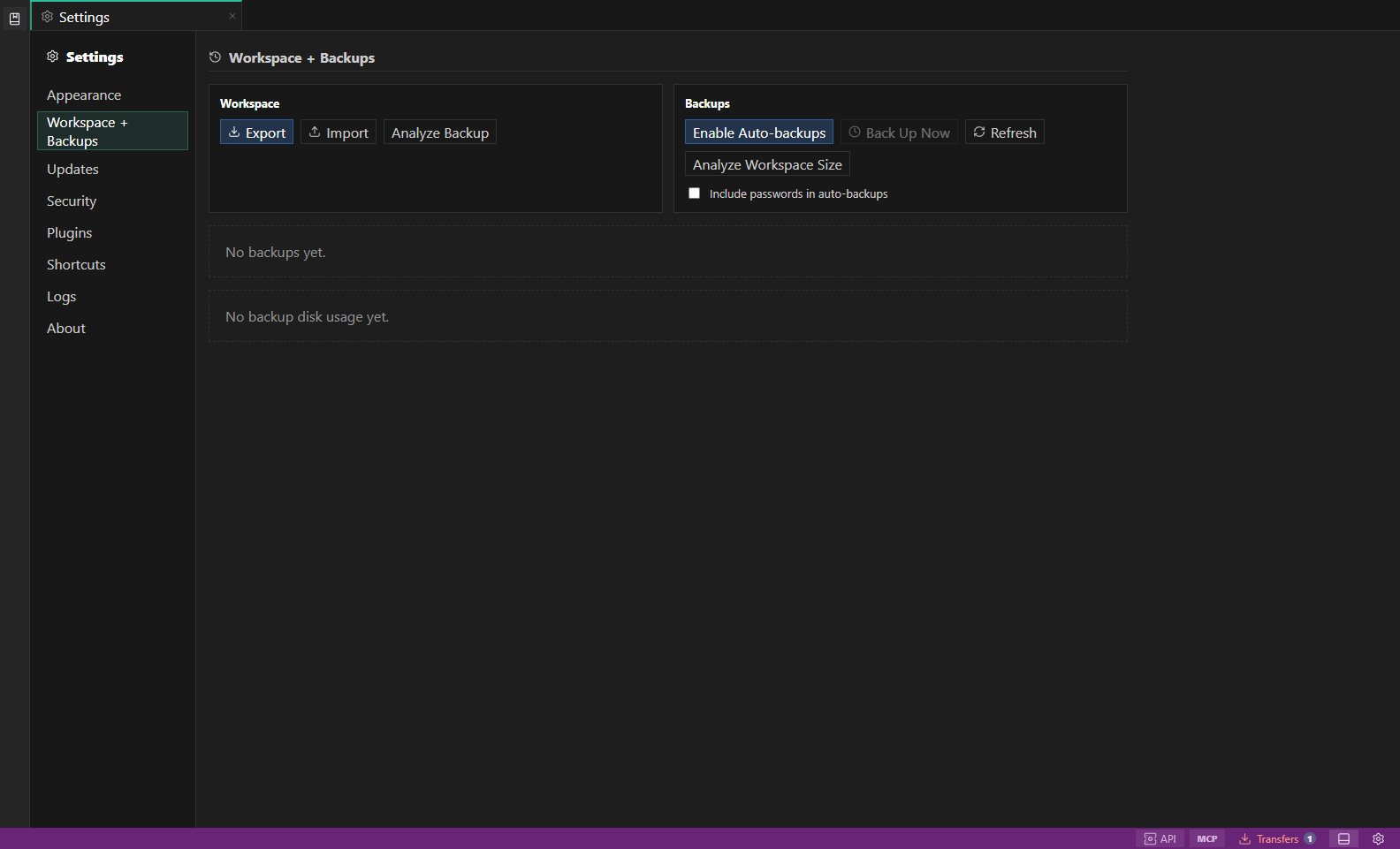
Settings and backups. Workspace bundles, encrypted backups, appearance, health, and shortcuts. Open full size - 2
Review Appearance and Workspace
Tune theme, layout, workspace defaults, plugins, and saved-work behavior. The workspace registry switches the active payload, Explorer, tabs, and detached-window layout together.
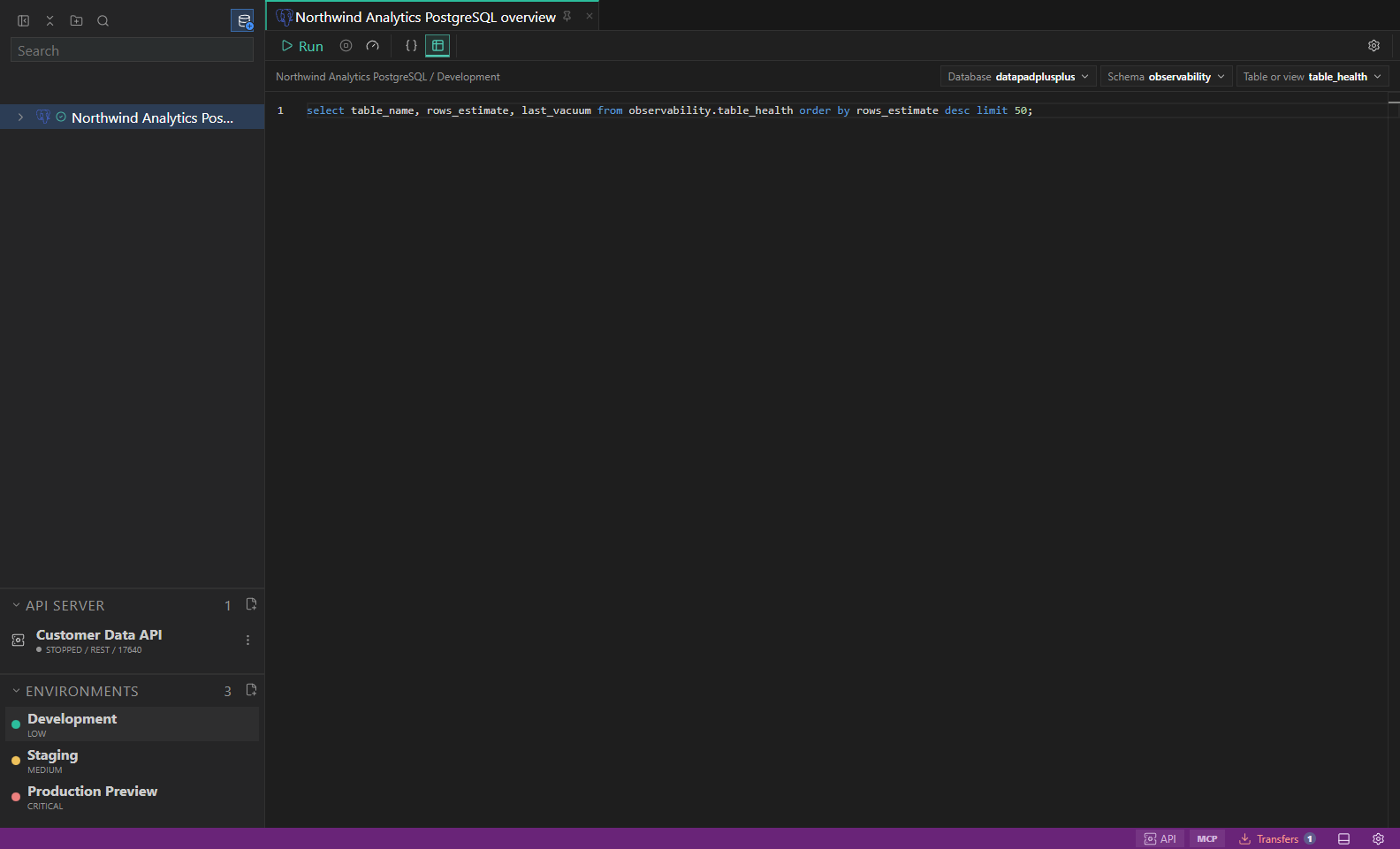
Library and environments. Saved connections, folders, scripts, and inherited environment labels. Open full size - 3
Export a workspace bundle
Open the export dialog, choose secret inclusion, enter and confirm a passphrase, then use the system picker to create a compact authenticated encrypted .datapadpp-workspace file.
- 4
Choose secret inclusion deliberately
Secret-free export removes values and references. Secret-inclusive export requires every selected vault reference to resolve and keeps those values only inside the authenticated encrypted payload.
- 5
Enable auto-backups when useful
Opt-in backups are encrypted, passphrase-protected, and rotate so snapshots do not grow without bound.
- 6
Import file first and review
Select the file, unlock it, review workspace-schema compatibility, sizes, counts, warnings and secrets, then name a new workspace or explicitly replace the current workspace with recovery state. Current workspaces use schema 14; supported older workspaces migrate without changing the encrypted bundle format.
Task and control reference
The workbench keeps the active connection, environment, target scope, query mode, and panel state visible. Review that context before you run, edit, export, or administer anything.
Safety boundaries
Troubleshooting
| Symptom | What to check |
|---|---|
| A control is disabled | Read its disabled reason, then verify target scope, connection health, read-only mode, environment policy, and feature maturity. |
| The screen does not match this guide | Confirm the app version and platform, refresh the active tab, and check whether the feature is marked Experimental, Plan only, or Unavailable. |
| The operation produces no rows | Open Messages and History, verify the selected datastore scope, replace the sample object names with names from your datastore, and retry with a bounded read. |