
Exploring and IntelliSense
Inspect Objects And Metrics
Open object views, inspect metadata, and use metrics without losing query context.
Prerequisites
- Open DataPad++ and the workspace where you want to organize your own connections and saved work.
- Connect with an account you are authorized to use, and keep it read-only until your task requires a reviewed write.
Quickstart
- 1
Select an Explorer object
Choose a native object in Explorer and open Object view or the Inspection drawer to see identifiers, columns/fields/properties, indexes, ownership, and available actions.
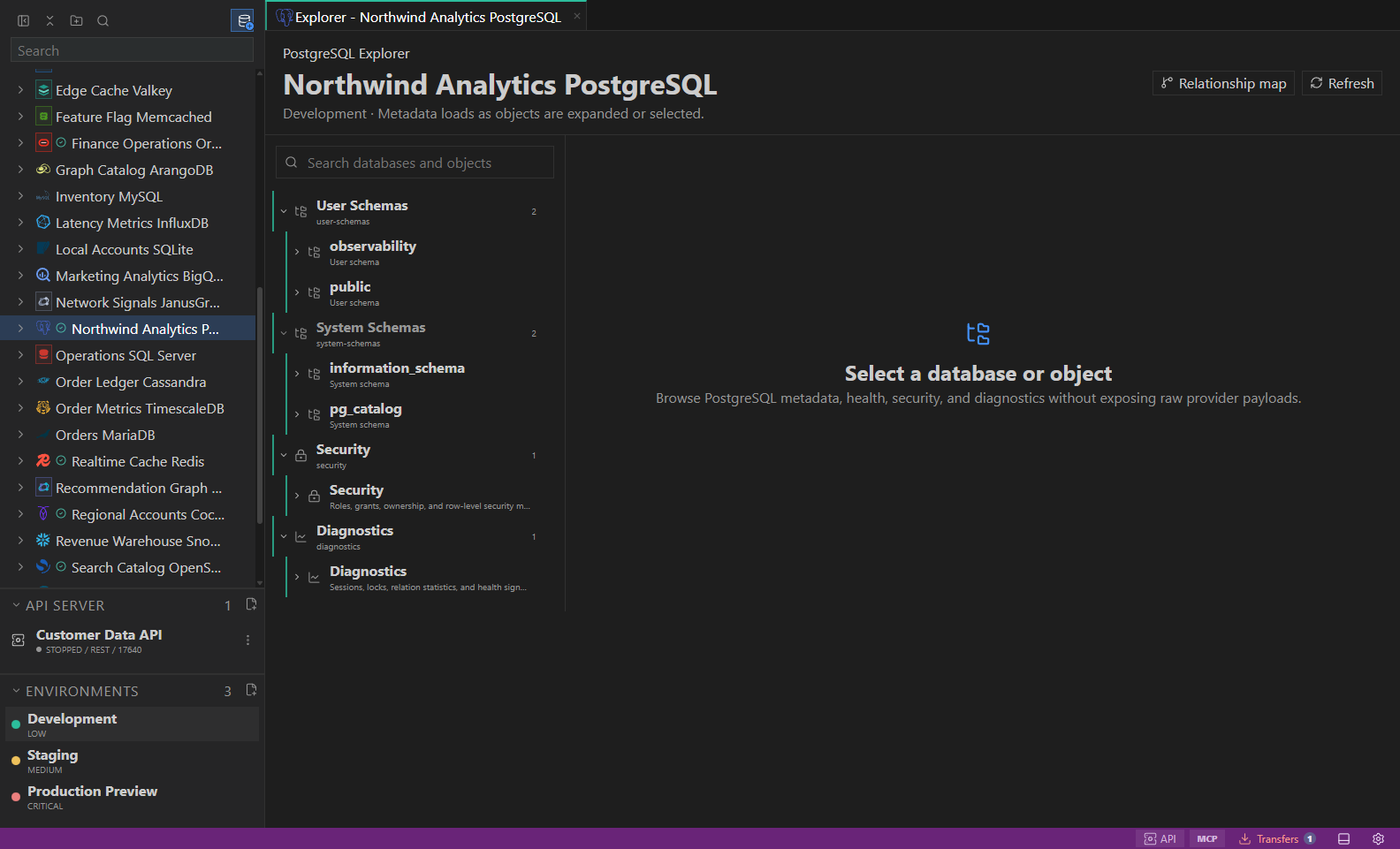
Object explorer. Datastore-owned tree with native objects and context actions. Open full size - 2
Open metrics
Use the object action or status entry point to open a Metrics tab when the adapter supplies safe runtime evidence.
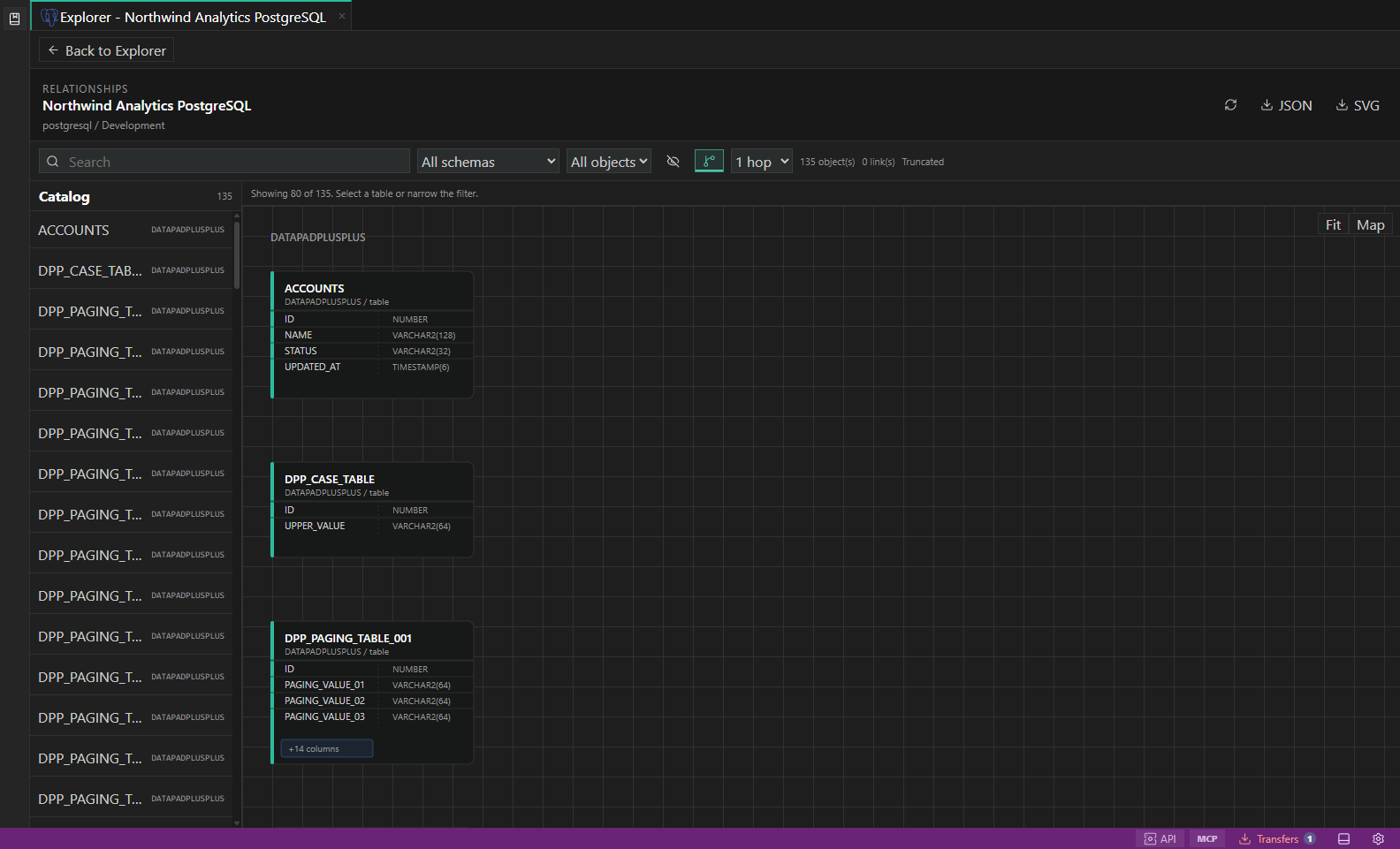
SQL relationship explorer. Focused schema diagrams with table cards, relationship ends, and object inspectors. Open full size - 3
Compare without retargeting
Keep the object-view or metrics tab beside the query tab. Each retains its own connection, environment, and scope.
- 4
Refresh intentionally
Press F5 or use Refresh to request current metadata. Large branches and Oracle paging may show Load more rather than fetching everything.
- 5
Read unavailable states
A disabled metric, inspection field, or admin action includes a reason such as missing permission, unsupported adapter capability, incompatible object kind, or plan-only status.
Task and control reference
| Surface or task | How to use it |
|---|---|
| Explorer tab | A full native browsing workspace. |
| Object-view tab | Persistent selected-object metadata and actions. |
| Metrics tab | Adapter-provided health, activity, size, latency, or performance evidence. |
| Inspection drawer | Transient detail for the current tree node, result cell, or plan node. |
| Diagnostics drawer | Connection and execution evidence with redacted copy actions. |
Common failure states
| Problem | Resolution |
|---|---|
| The expected surface is hidden | Use the activity bar, View command, status-bar entry point, or Ctrl/Cmd+J for the panel and Ctrl/Cmd+B for the sidebar. |
| The tab has stale context | Refresh the tab, reselect its connection and scope, or open a new tab from the intended Explorer object. |
| A preview cannot execute | The feature may be preview-only for that datastore. Keep the generated plan or use the documented native-tool fallback. |