Import, export, and native backup
Export Result Files
Export accumulated loaded results or stream a supported original query, with explicit limits and progress.
Prerequisites
- Install the current DataPad++ desktop pre-release and open the workspace where you want to organize your connections and saved work.
- Have access to a datastore or database file you are authorized to inspect. Start read-only with a least-privileged account.
Quickstart
- 1
Run or open the result you need
Start from a query, object view, key browser, document browser, diagnostic panel, or saved workflow that has a concrete result payload.
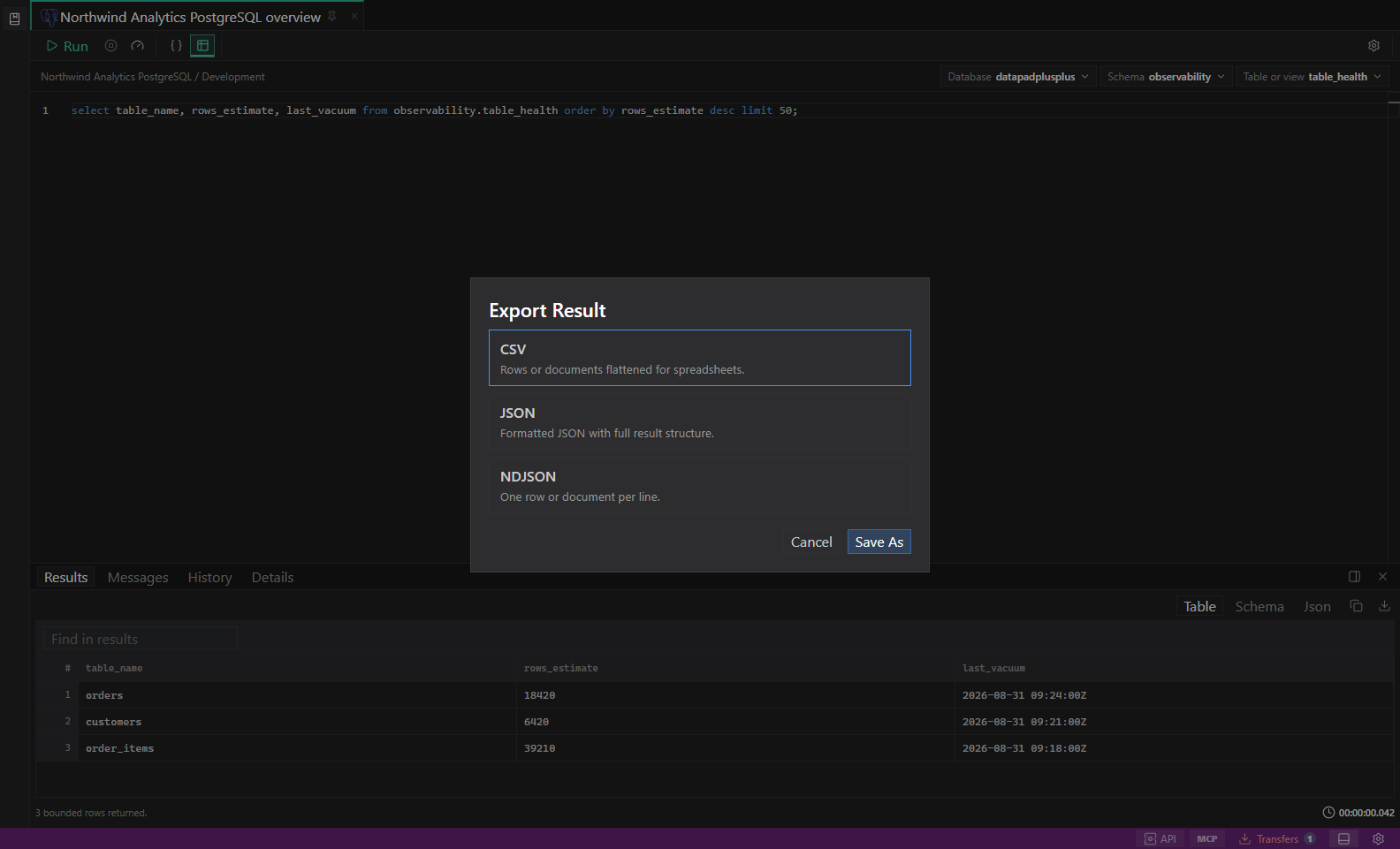
Result export dialog. Payload-aware CSV, JSON, NDJSON, and text exports with secret redaction. Open full size - 2
Open Export from the Results panel
Use the result toolbar export action. DataPad++ chooses sensible defaults from the renderer instead of asking you to guess the file format first.
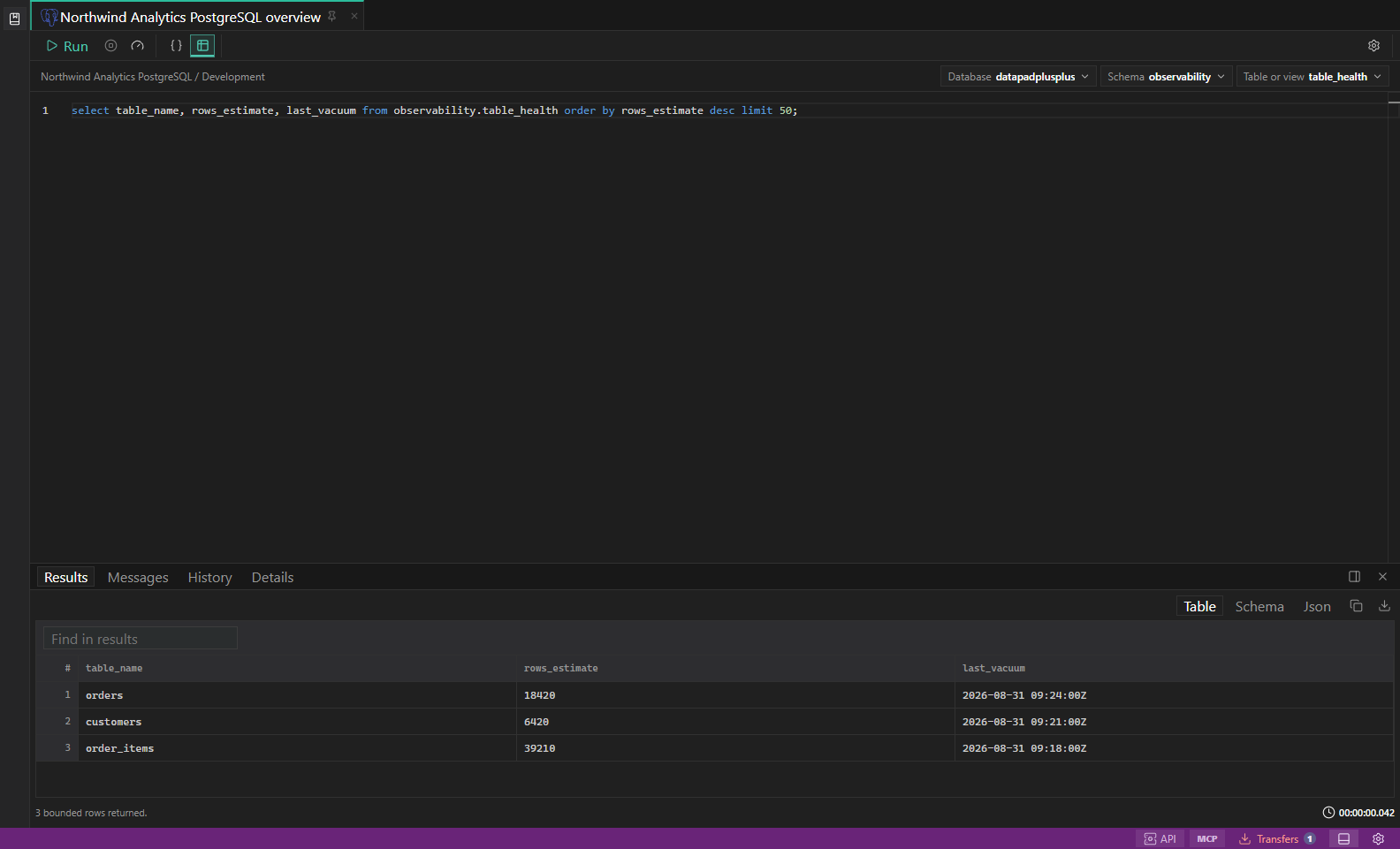
SQL query results. Editor, result grid, messages, and row selection in one workspace. Open full size - 3
Choose loaded results or the original full query
Loaded results is the default and includes all accumulated pages, not just the visible rows or first 500 documents. Desktop table/document exports use canonical captured values, not efficiency-mode placeholders. Full query results re-runs a supported original read query with its original connection, environment, scope, parameters, filters and limits; the current editor draft is not substituted and data may have changed.
- 4
Choose a payload-aware format
Tables can export as CSV or JSON; documents offer JSON or NDJSON. Full-query export offers CSV, JSON and NDJSON independently of the current renderer, including key-value, graph and raw views. Use JSON or NDJSON for heterogeneous documents: streamed CSV fails if later records introduce columns it cannot preserve. Native document wrappers and legitimate datastore field names are retained. Loaded exports from other result views keep their existing supported formats.
- 5
Set batch and cumulative limits independently
The query toolbar shows only Query limit beside Count. An unlimited builder shows No limit inside that input; entering a number adds a limit, while clearing it does not remove one. Settings → Queries & Results contains Fetching and results (batches of 500, range 1–5,000, and unlimited cumulative loaded/exported rows by default), New builder queries (Datastore default, Limited, or No limit), and a collapsed Selected query section. Select an open query to adjust its batch override or remove a supported builder limit, then use Apply to selected query. Saving workspace defaults is separate and never changes existing queries. No limit still loads incrementally through Load More. Raw SQL/scripts and explicit native constraints remain unchanged; DynamoDB Items evaluated and Search Hit limit retain their native meanings, including Search zero.
- 6
Choose a location and monitor progress
Desktop query exports show progress in Transfers and can run in the background or be canceled. Temporary output replaces the destination only after success. An export stopped by the configured row cap is reported as limited. Canceling the save picker leaves the dialog ready to retry. Browser preview supports loaded downloads only.
- 7
Check compatibility and freshness
Scripts, writes and unsupported query shapes cannot use full export. Oracle requires the built-in runtime; Memcached requires explicit get/gets keys; InfluxDB supports v1-compatible InfluxQL rather than Flux or v3 SQL. Prometheus, OpenTSDB, JanusGraph, Neptune, Snowflake and BigQuery full-query streams are not implemented yet. Some adapters cannot continue the results view even when full export is available. Connection/environment changes or edits without reliable row identity require rerunning the query; an explicit error prevents stale export. Live cloud validation and release-platform checks remain separate from implementation availability.
Task and control reference
The workbench keeps the active connection, environment, target scope, query mode, and panel state visible. Review that context before you run, edit, export, or administer anything.
Safety boundaries
Troubleshooting
| Symptom | What to check |
|---|---|
| A control is disabled | Read its disabled reason, then verify target scope, connection health, read-only mode, environment policy, and feature maturity. |
| The screen does not match this guide | Confirm the app version and platform, refresh the active tab, and check whether the feature is marked Experimental, Plan only, or Unavailable. |
| The operation produces no rows | Open Messages and History, verify the selected datastore scope, replace the sample object names with names from your datastore, and retry with a bounded read. |